Overview
Learn more about how URL schemes work, which URL schemes are supported by HyperTexting, and how you can use them.
What is a URL scheme?
A URL scheme is the part of a link that specifies the type of application your device uses to open a URL.
The most common URL schemes are http: and https:, which open in your browser.
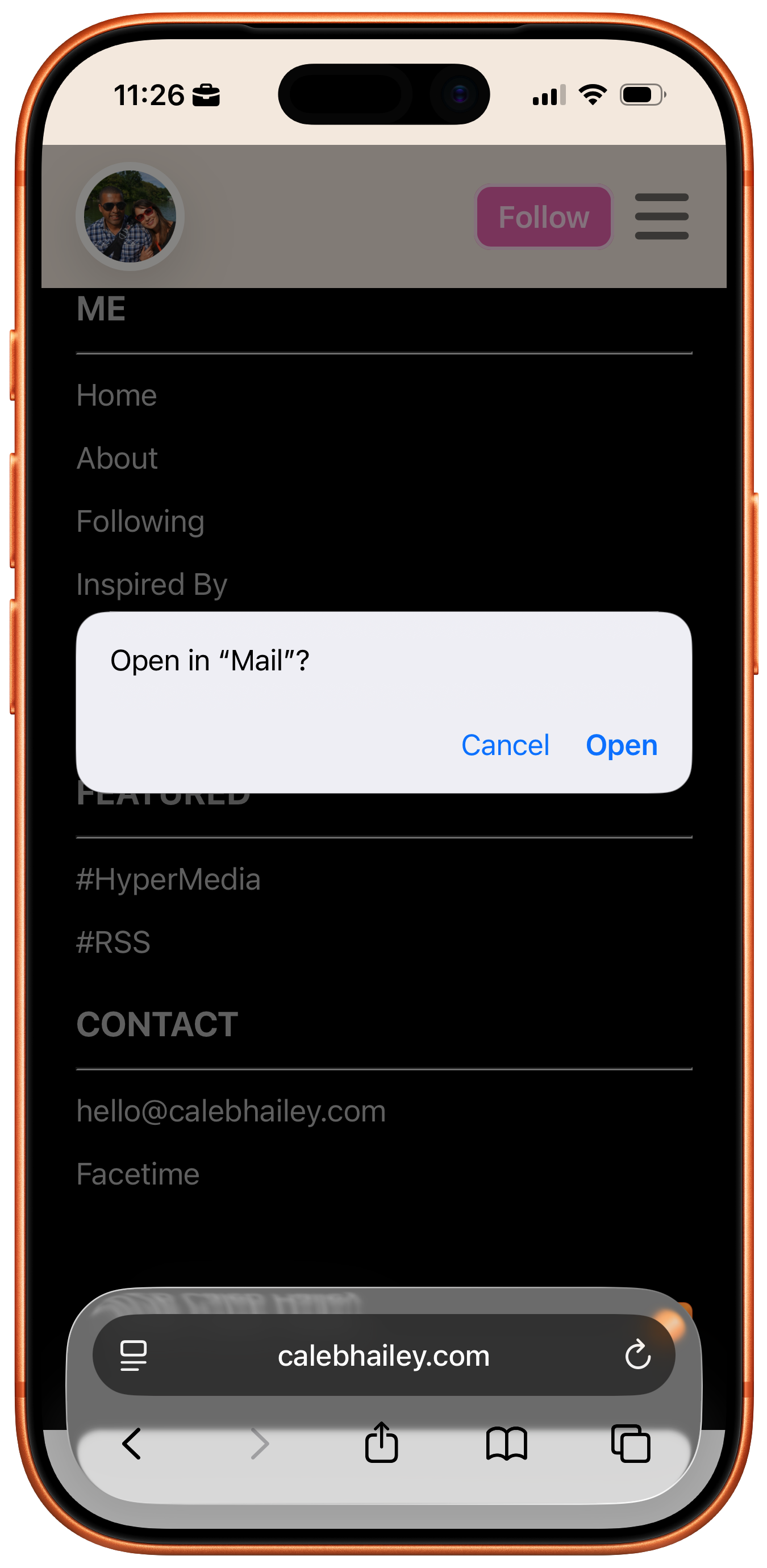
Other popular use cases for URL schemes include mailto: links for sending emails, and the tel: URL scheme for making phone calls (e.g. tel:5555551234).
Supported URL schemes
HyperTexting supports the standard feed: and feeds: url schemes, and a custom htxt: URL scheme.
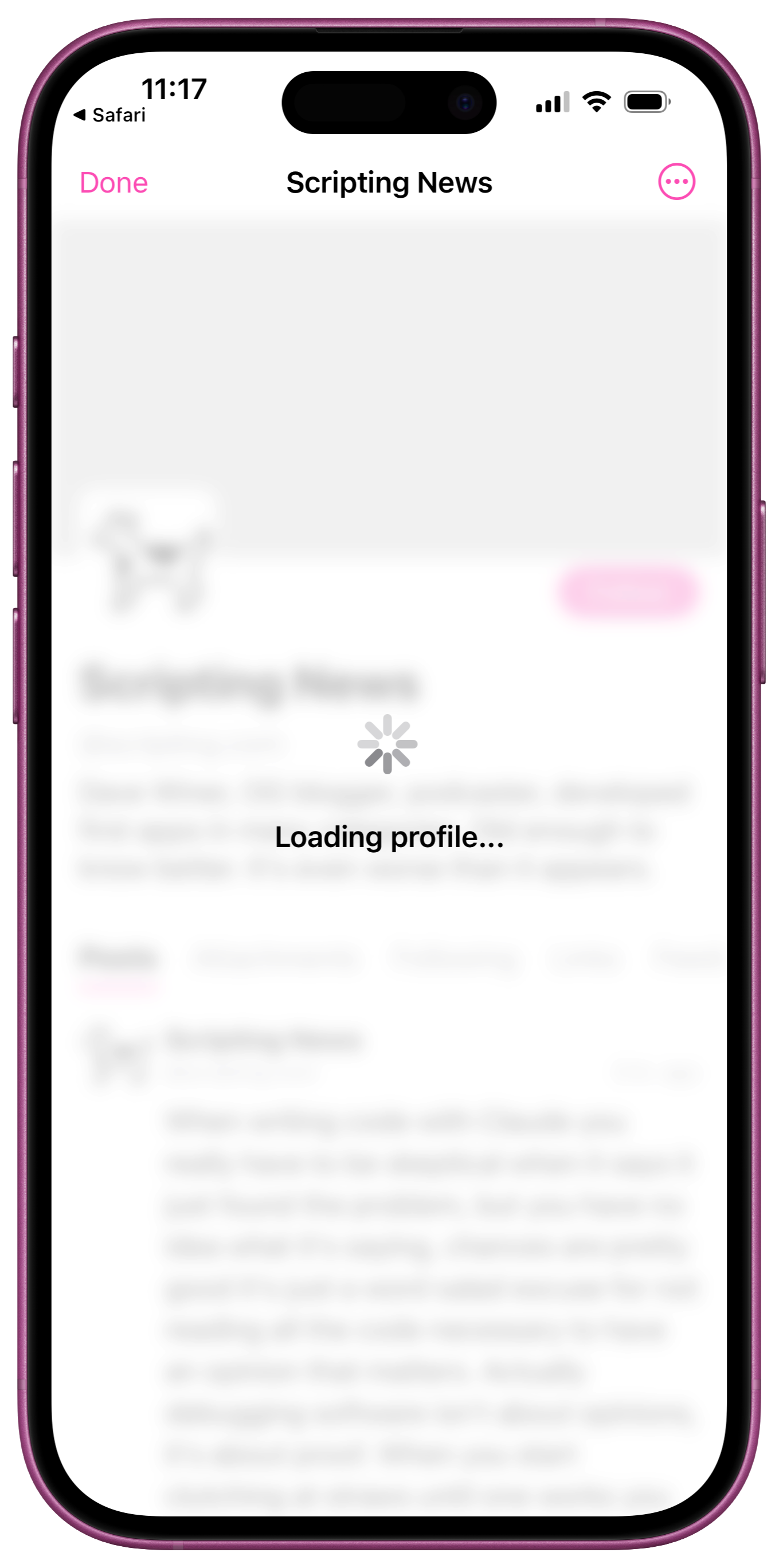
If HyperTexting is the default application for feed: and feeds: URLs, tapping a link with a URL like feed://scripting.com/rss.xml will open a Profile preview for the feed.
Using URL schemes
URL schemes are extremely flexible. They are useful for launching apps, for deep linking to specific content in an app, and for automation.
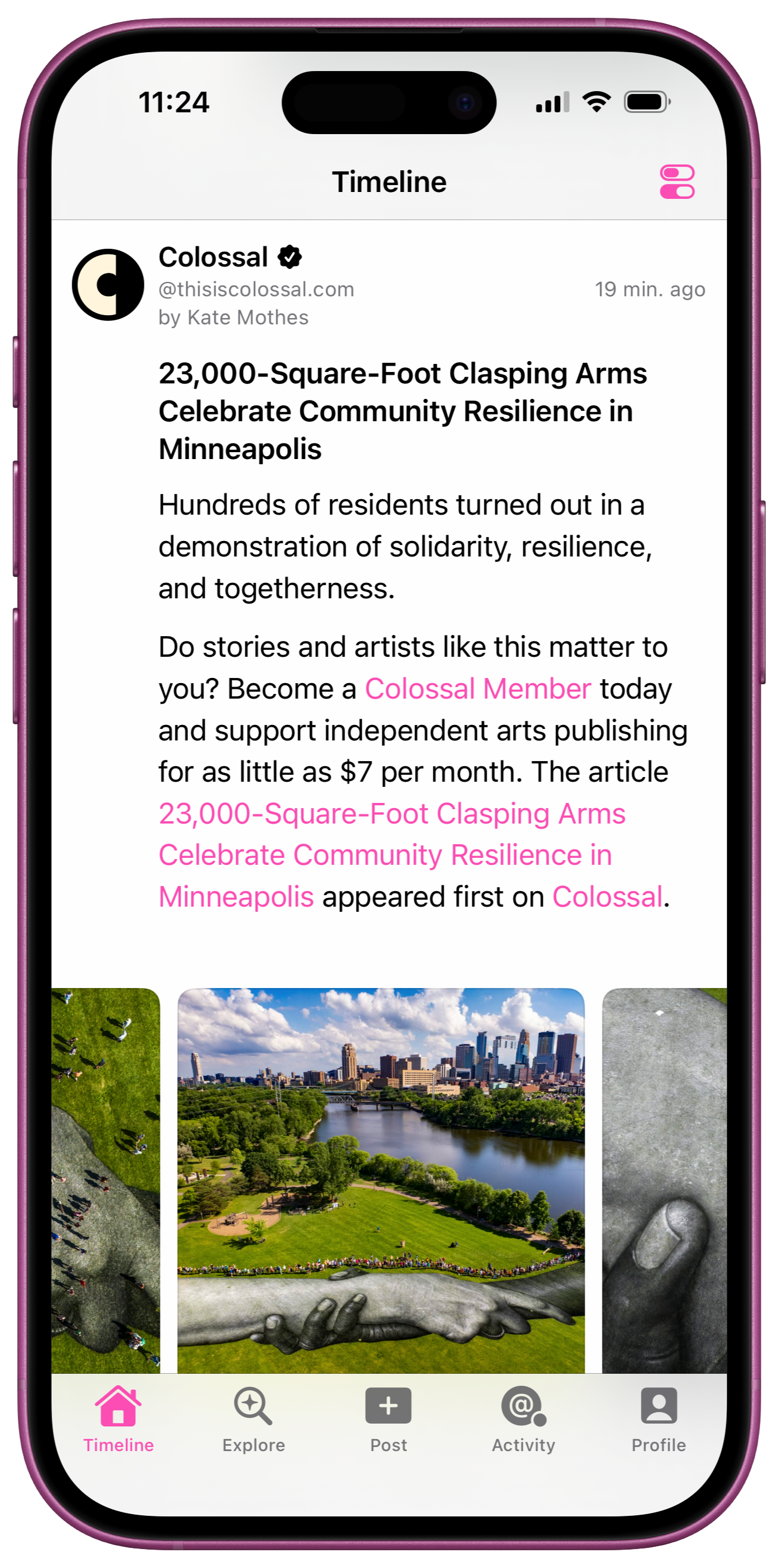
Launching HyperTexting
Use the htxt:// URL to open HyperTexting.
If HyperTexting was already running in the background, htxt:// will launch the app and show you where you left off.
If HyperTexting was not running, it will open to the Timeline tab.
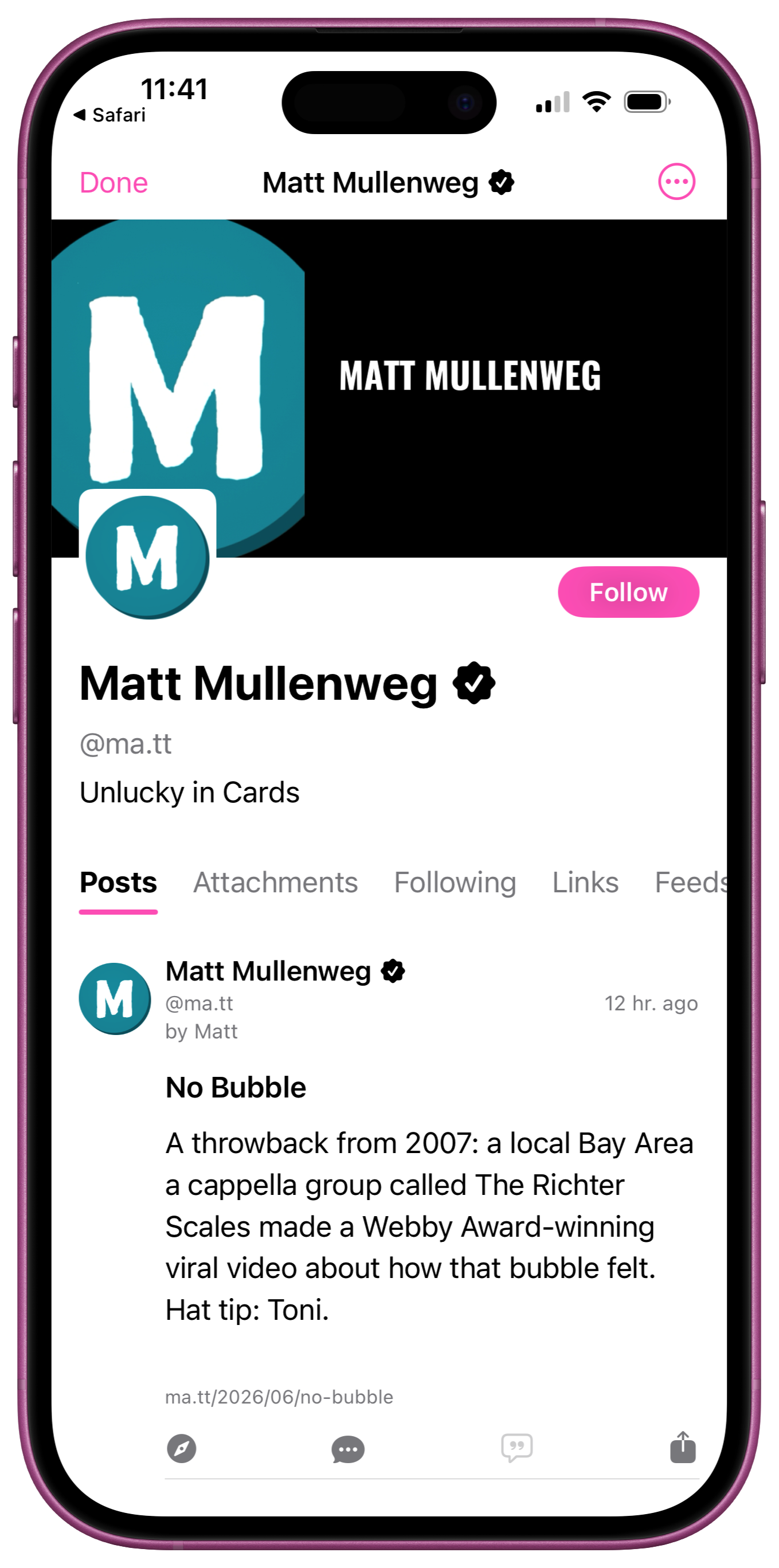
Profile Previews
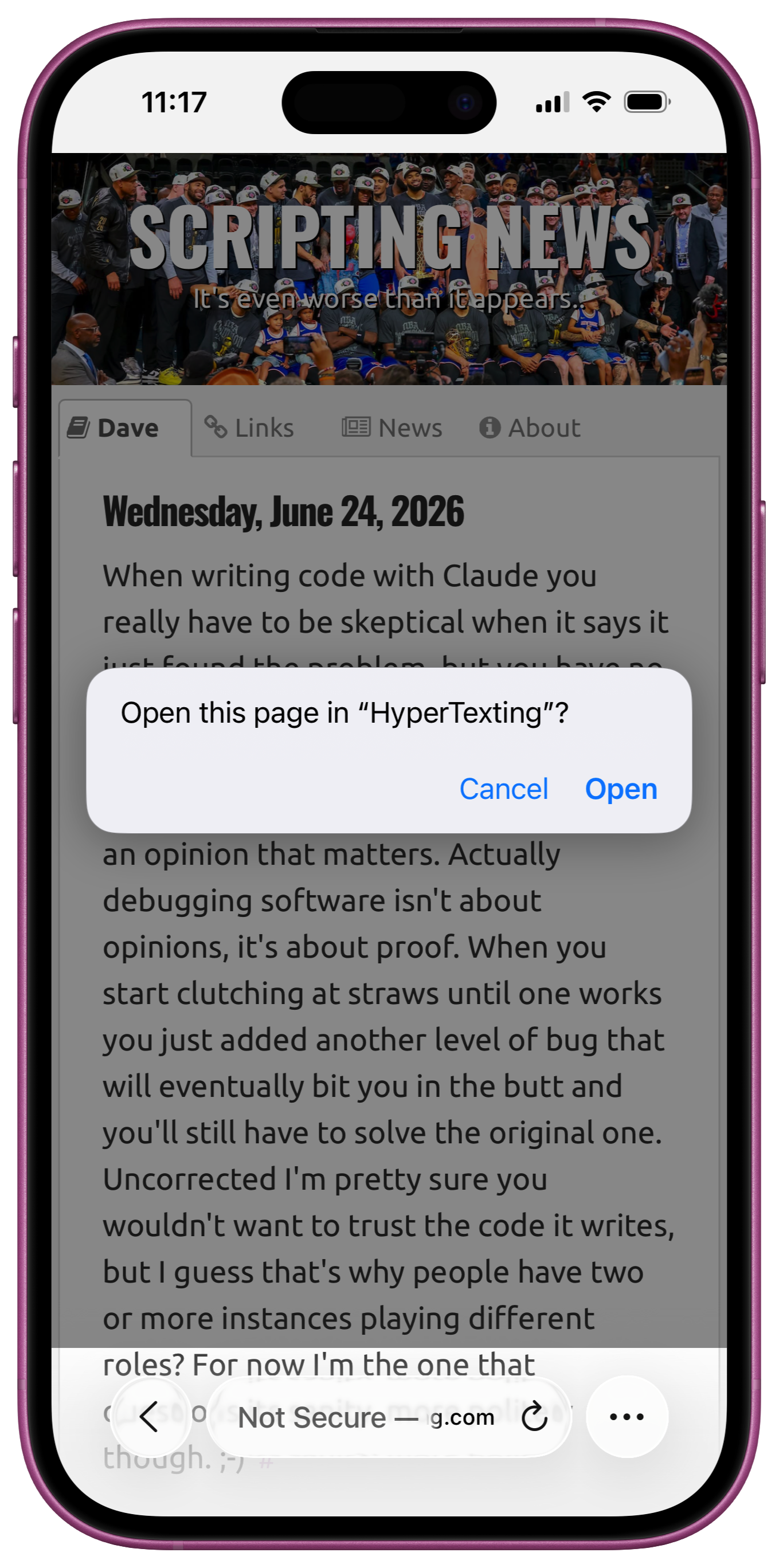
HyperTexting opens feed://<hostname>, feeds://<hostname>, and htxt://<hostname> URLs as Profile previews.
For example, try clicking any one of these links from a device with HyperTexting installed:
If you have more than one compatible application and HyperTexting is not the default, the feed: and feeds: links might open in your default feed reader. But the htxt: link should always open in HyperTexting.
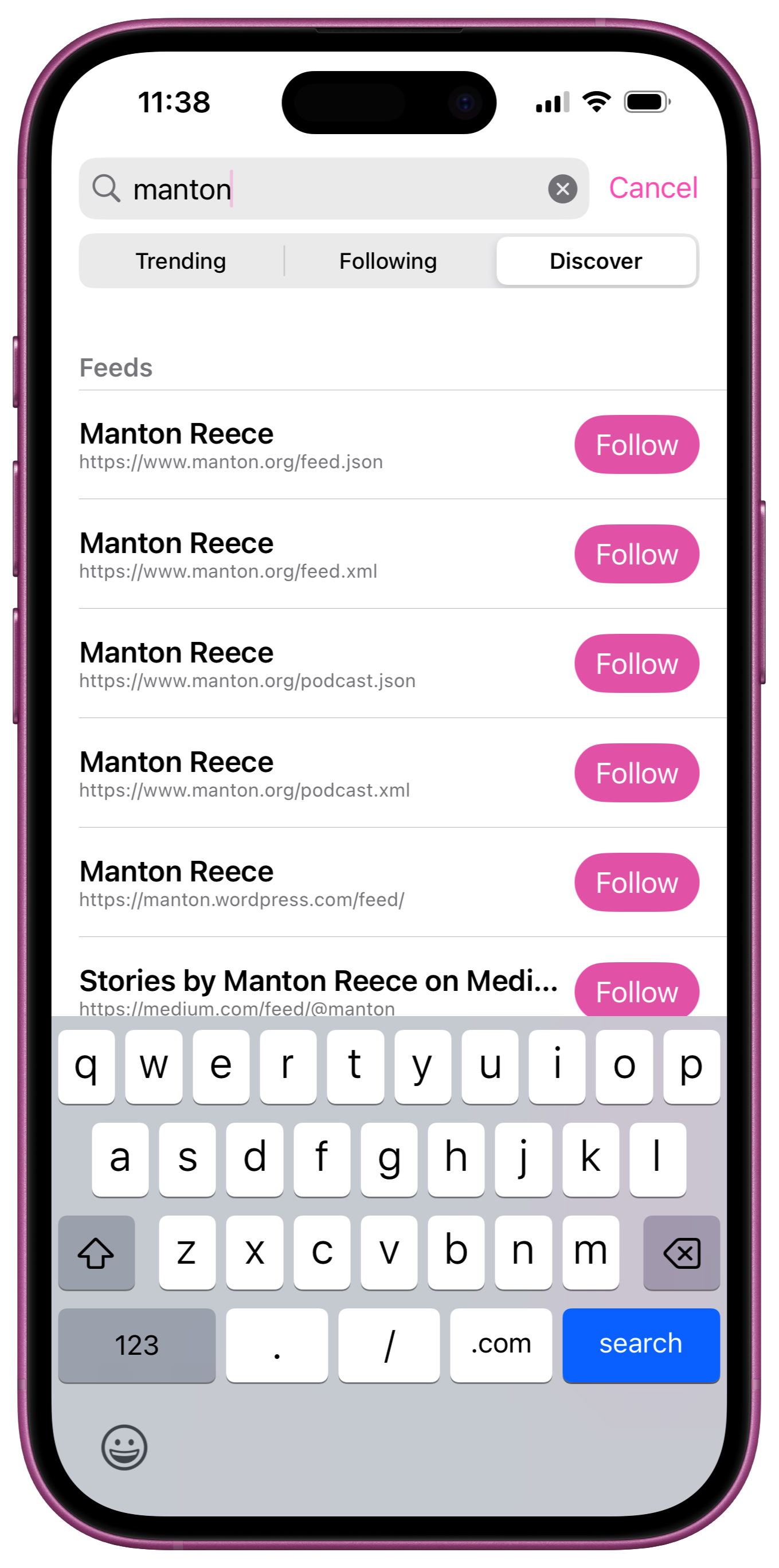
Feed discovery
Use htxt:///explore links to open HyperTexting to the Explore tab and perform a search.
Provide a ?q= query parameter to prepopulate the search bar (e.g. htxt:///explore?q=manton).
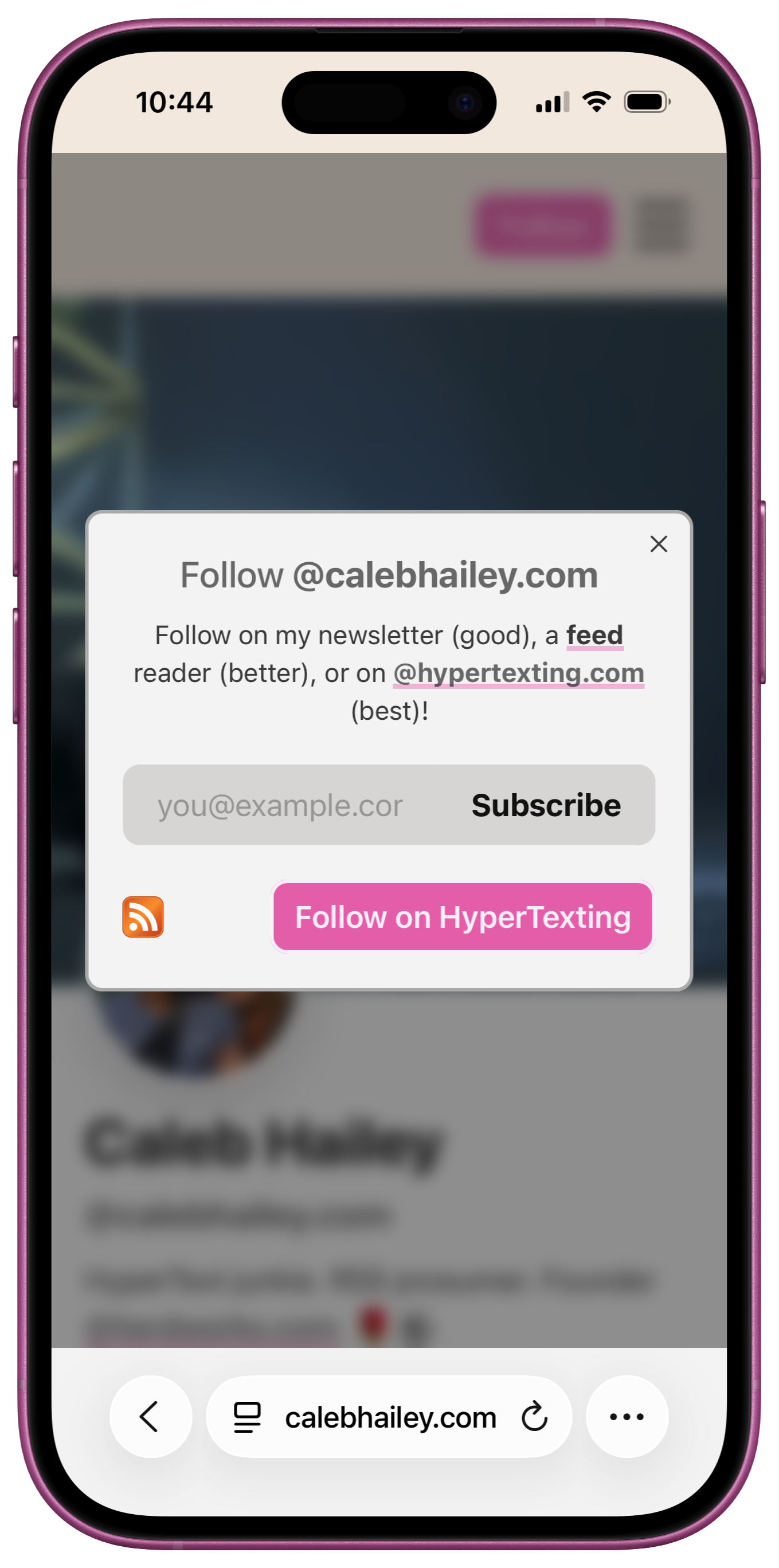
Follow buttons
By itself a custom URL scheme is typically only interesting to power users.
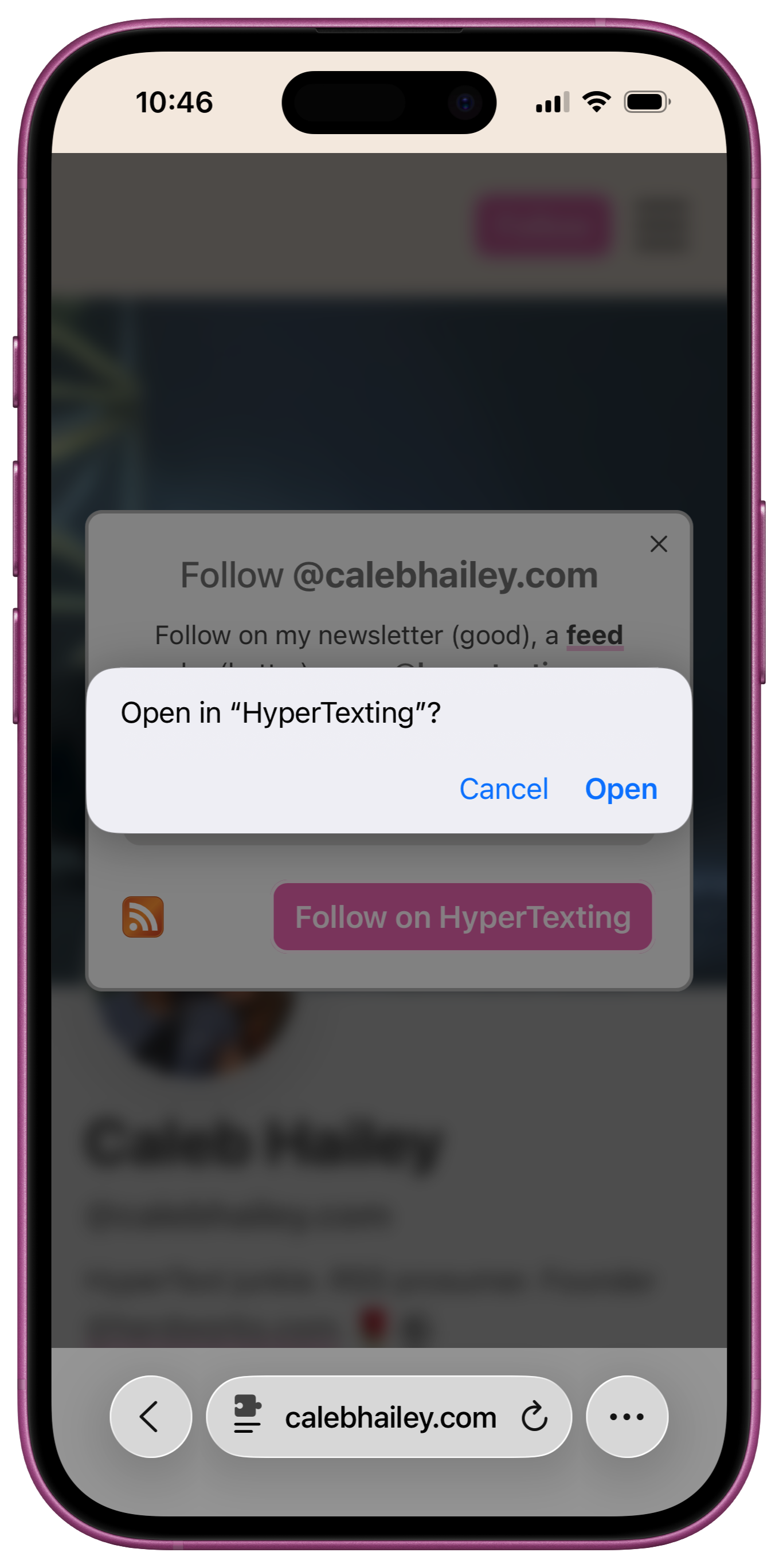
However, when combined with the HyperTexting Safari Extension, the htxt: URL scheme makes something new possible: adding a "Follow" button to your website.
If you publish a website or podcast feed and want to make it easy for your followers to subscribe without explain what a "feed reader" is, now you can!
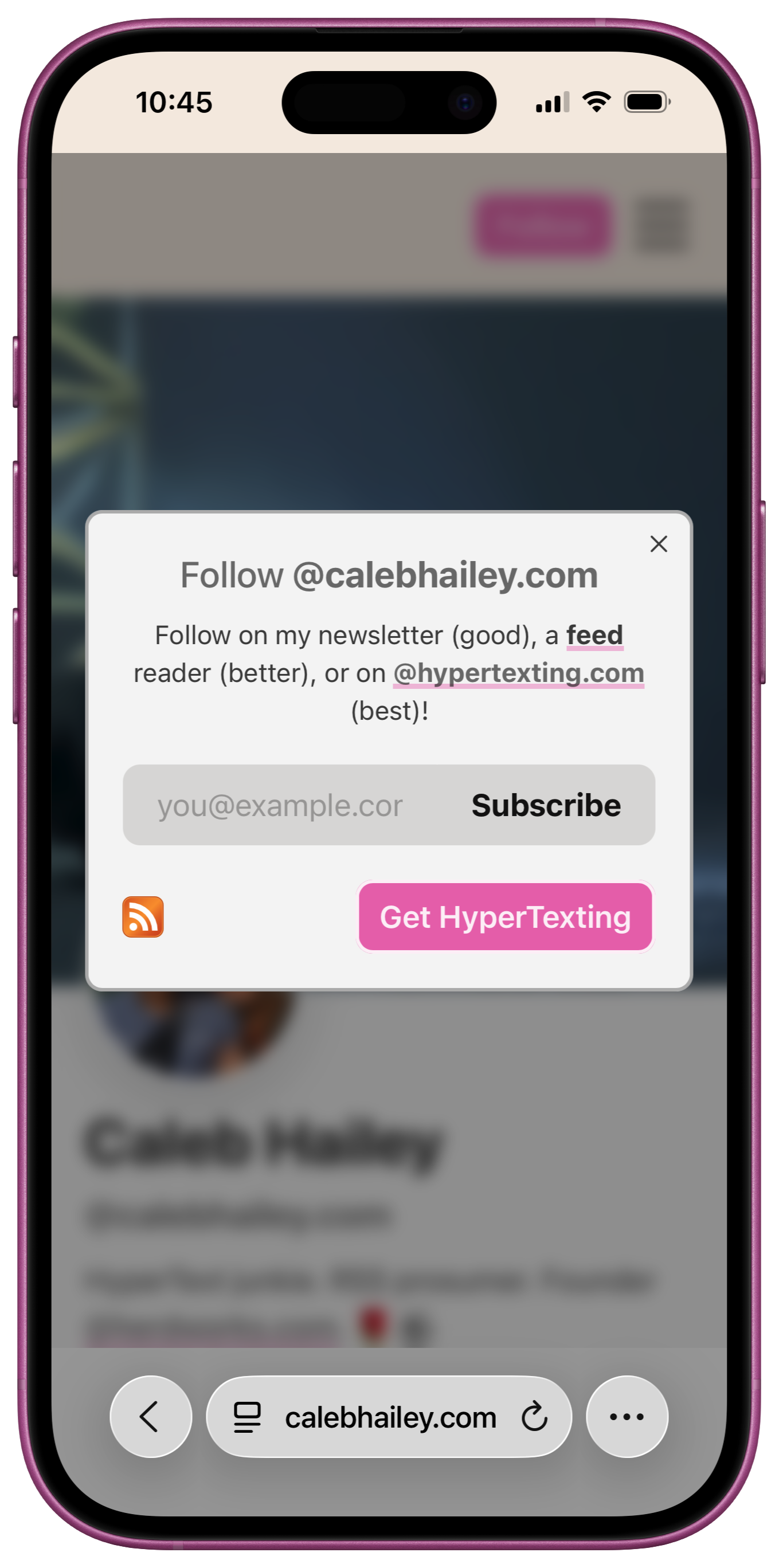
Add a follow button to your website
Website developers can now detect when a Safari user has the HyperTexting Safari Extension by checking for the [data-htxt-enabled] attribute on the root <html> element – no Javascript required!
With just a few lines of vanilla CSS you can conditionally show or hide a "Follow on HyperTexting" link or button.
Example CSS:
1/* show the "Follow on HyperTexting" button */
2html:has([data-htxt-enabled]) nav dialog button { display: block; }
3
4/* hide the "Follow on HyperTexting" button */
5html:not([data-htxt-enabled]) nav dialog button { display: none; }
6html:not([data-htxt-enabled]) nav dialog button.alternate { display: block; }
PROTIP: when the HyperTexting Safari Extension is not enabled, you can display an alternate link or button. For example, if you love HyperTexting as much as we do, you could show a "Get HyperTexting" button that links to the App Store (as shown in the adjacent screenshot).