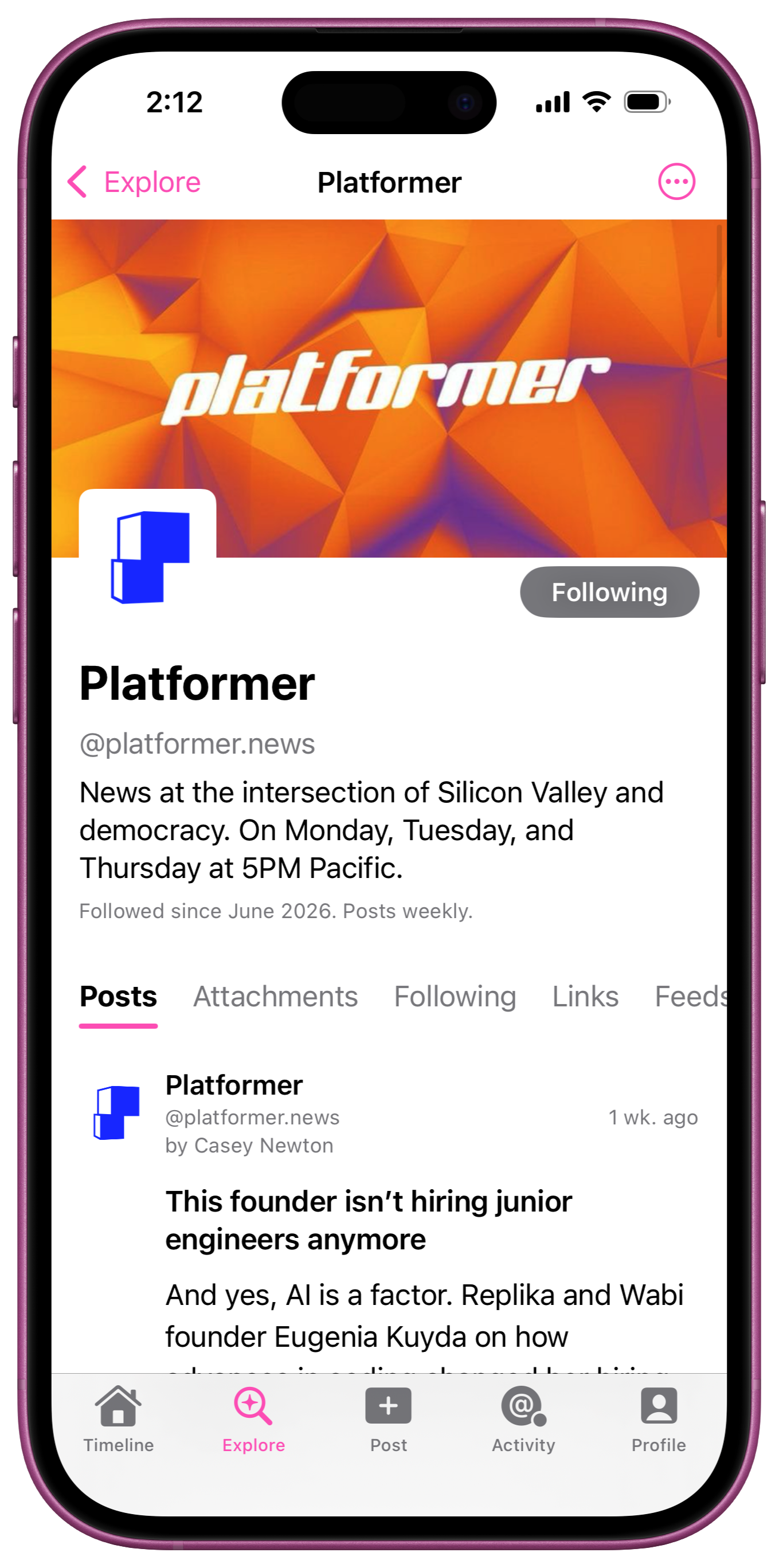
Overview
HyperTexting organizes content by website and presents them as Profiles. Profiles include website metadata, timelines, attachments, followed feeds, and external links.
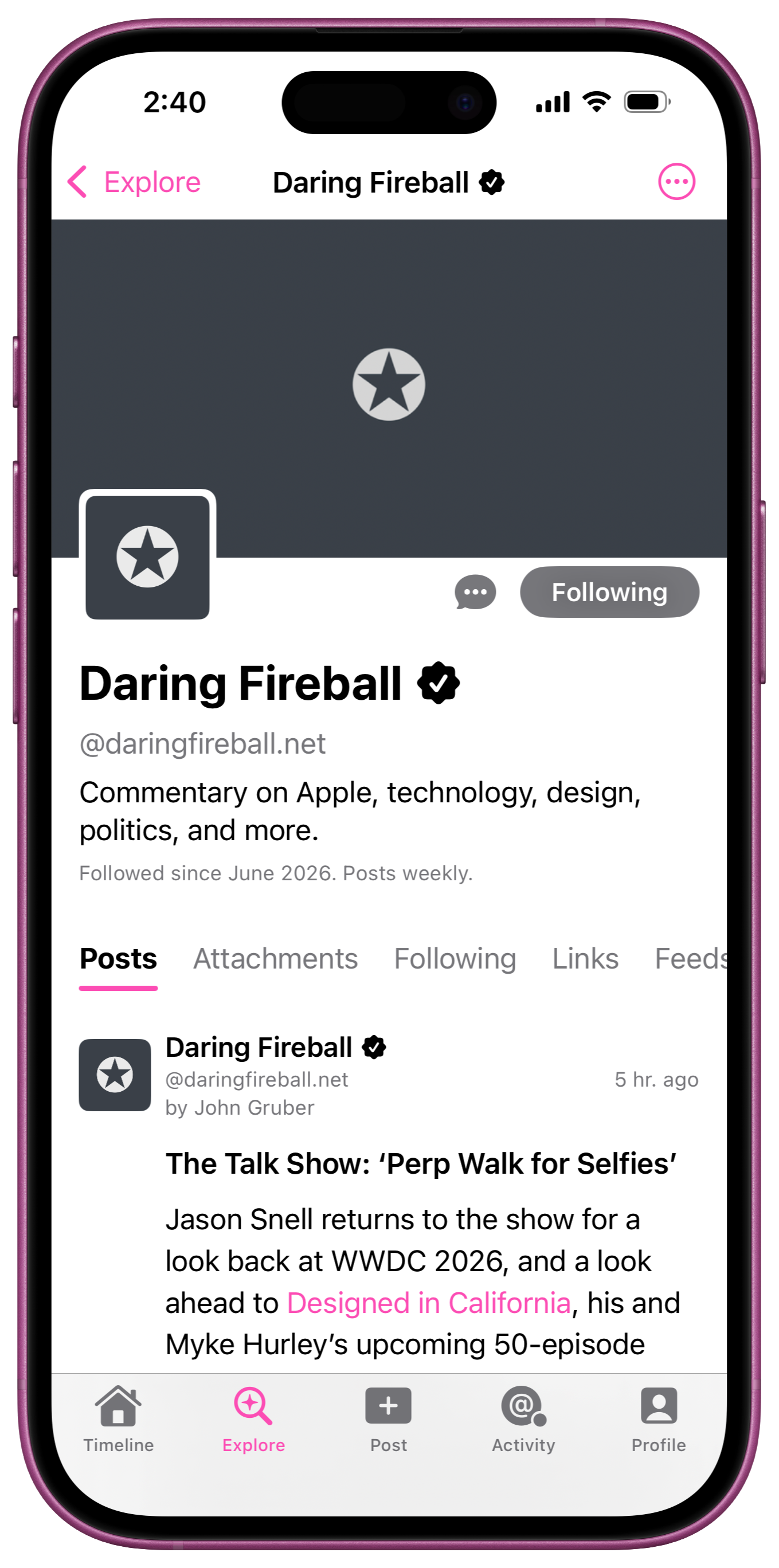
Profile metadata
HyperTexting Profiles display website metadata including titles, usernames (e.g. @daringfireball.net), and descriptions. These metadata properties are automatically discovered using HTML markup from website home pages.
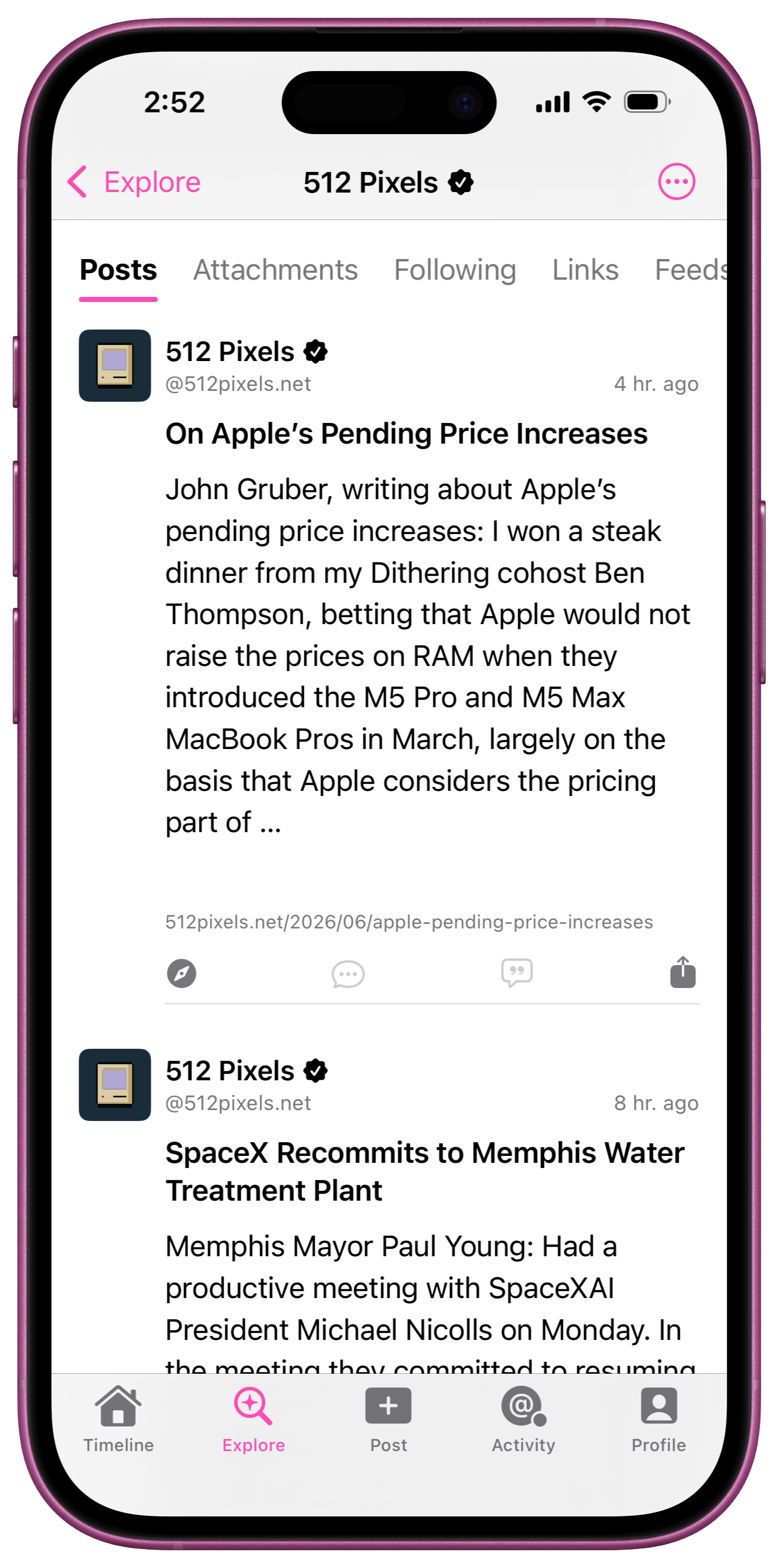
Timeline
HyperTexting profiles are a great way to catch up on the latests posts from your favorite websites. Tap the "Posts" tab of any Profile to see the latest posts.
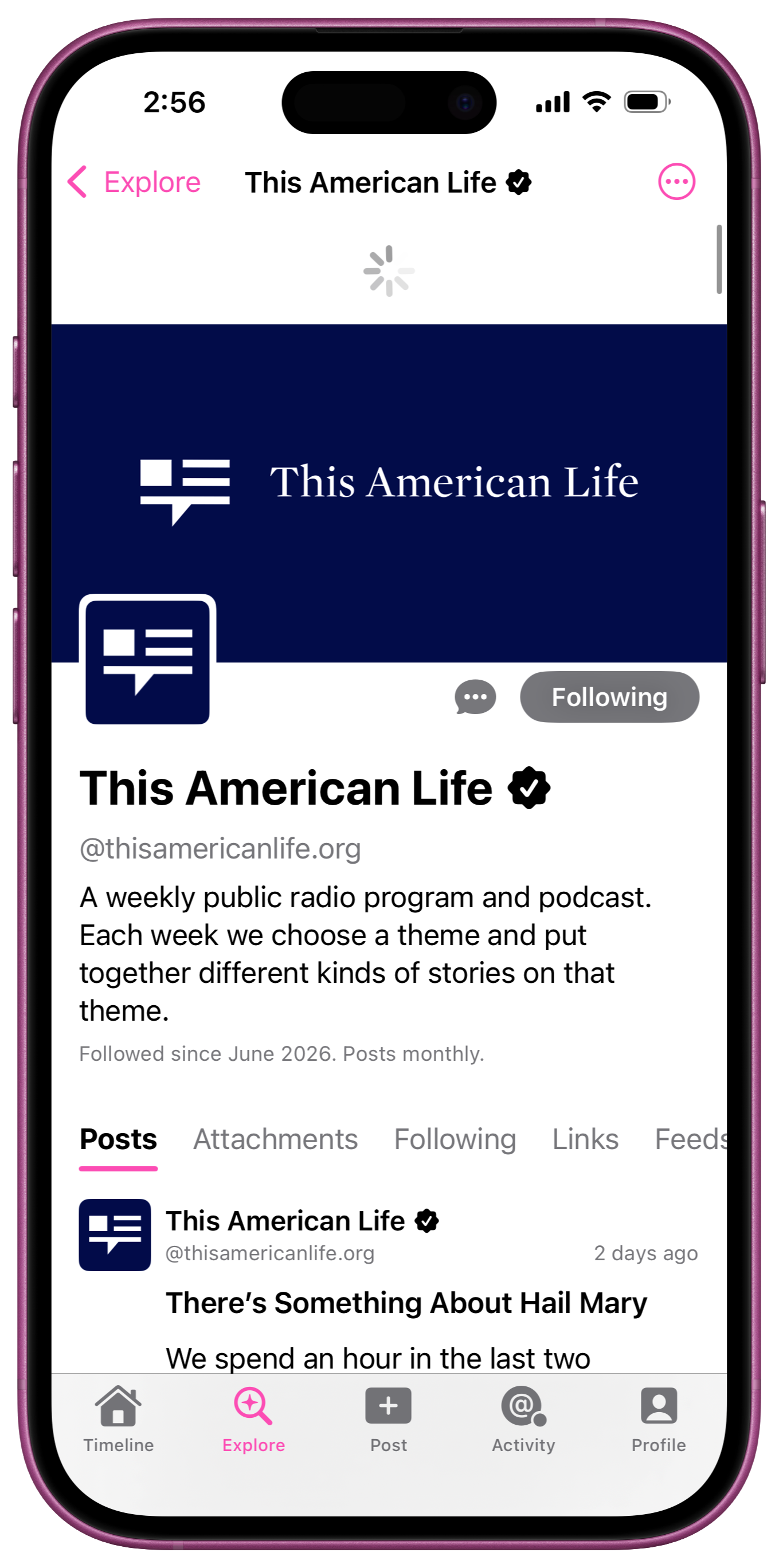
Pull-to-refresh
HyperTexting Profiles support pull-to-refresh. Refreshing a Profile will fetch any associated feeds and update the timeline.
Attachments
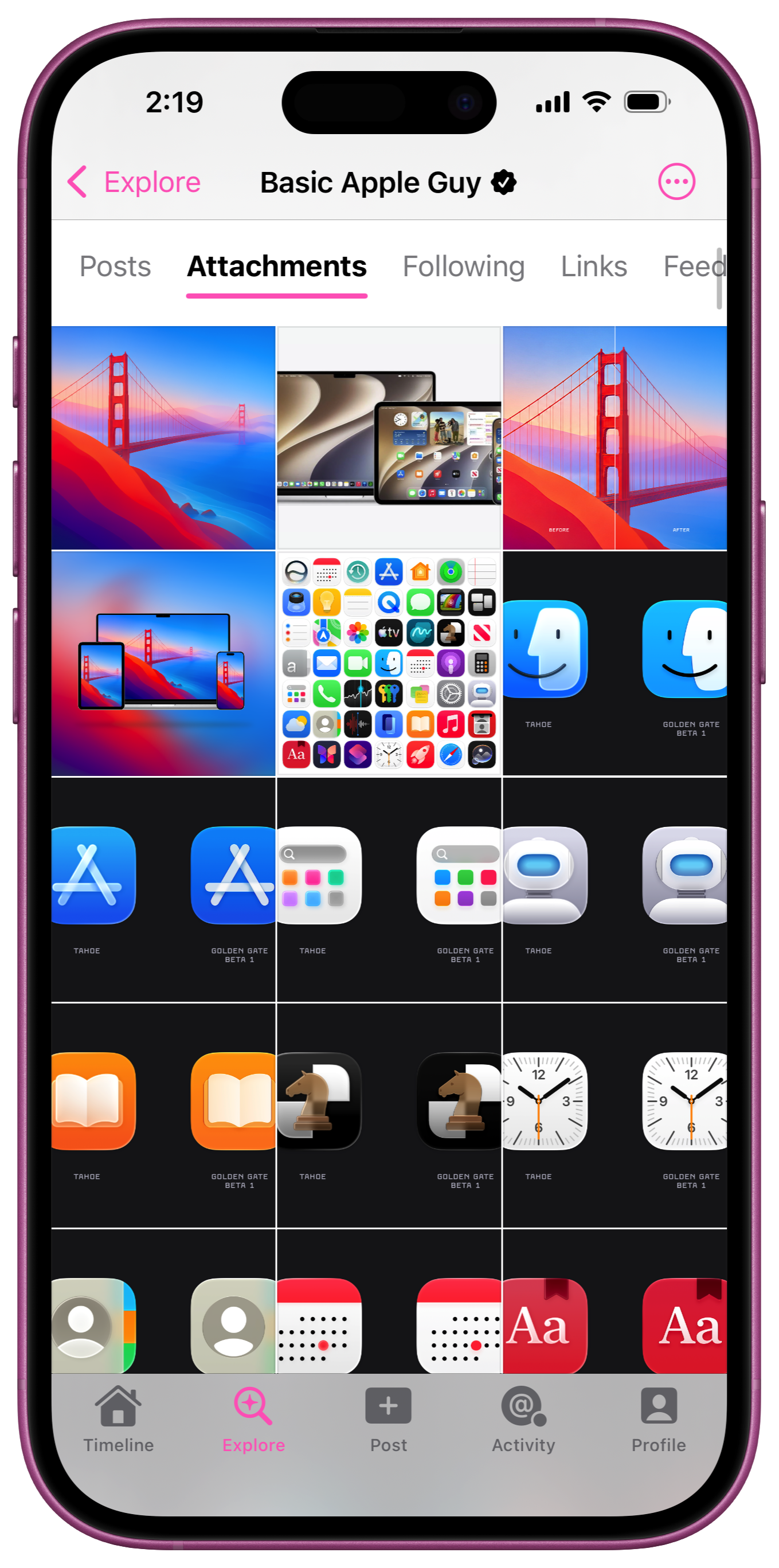
Feeds are full of rich hypermedia including links, images, audio & video files, and more. Tap the "Attachments" tab of any Profile to see the latest media in a familiar grid view.
Tap on any media in the attachments grid to view it full screen, then swipe between individual media attachments from a given post.
Following
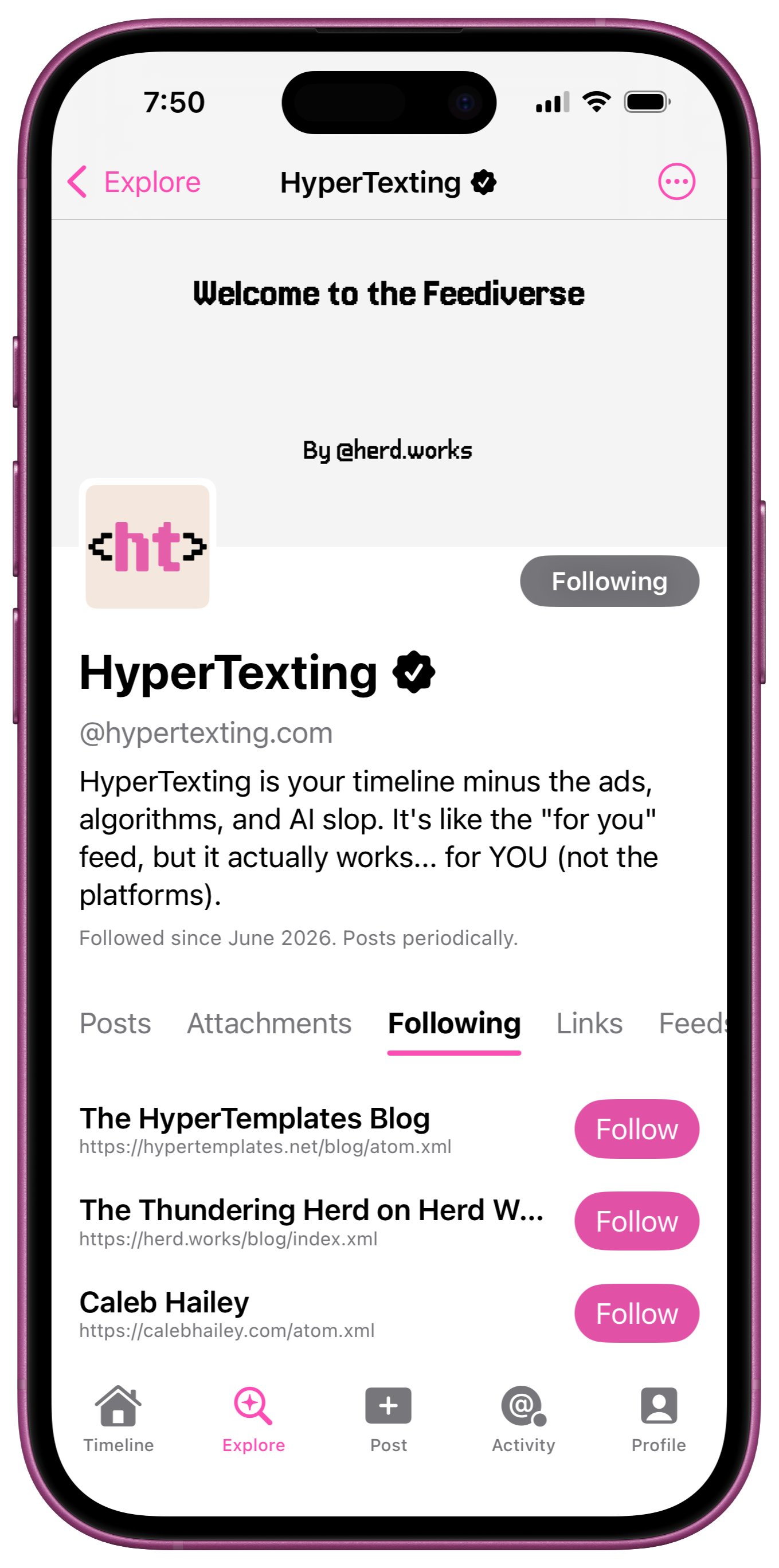
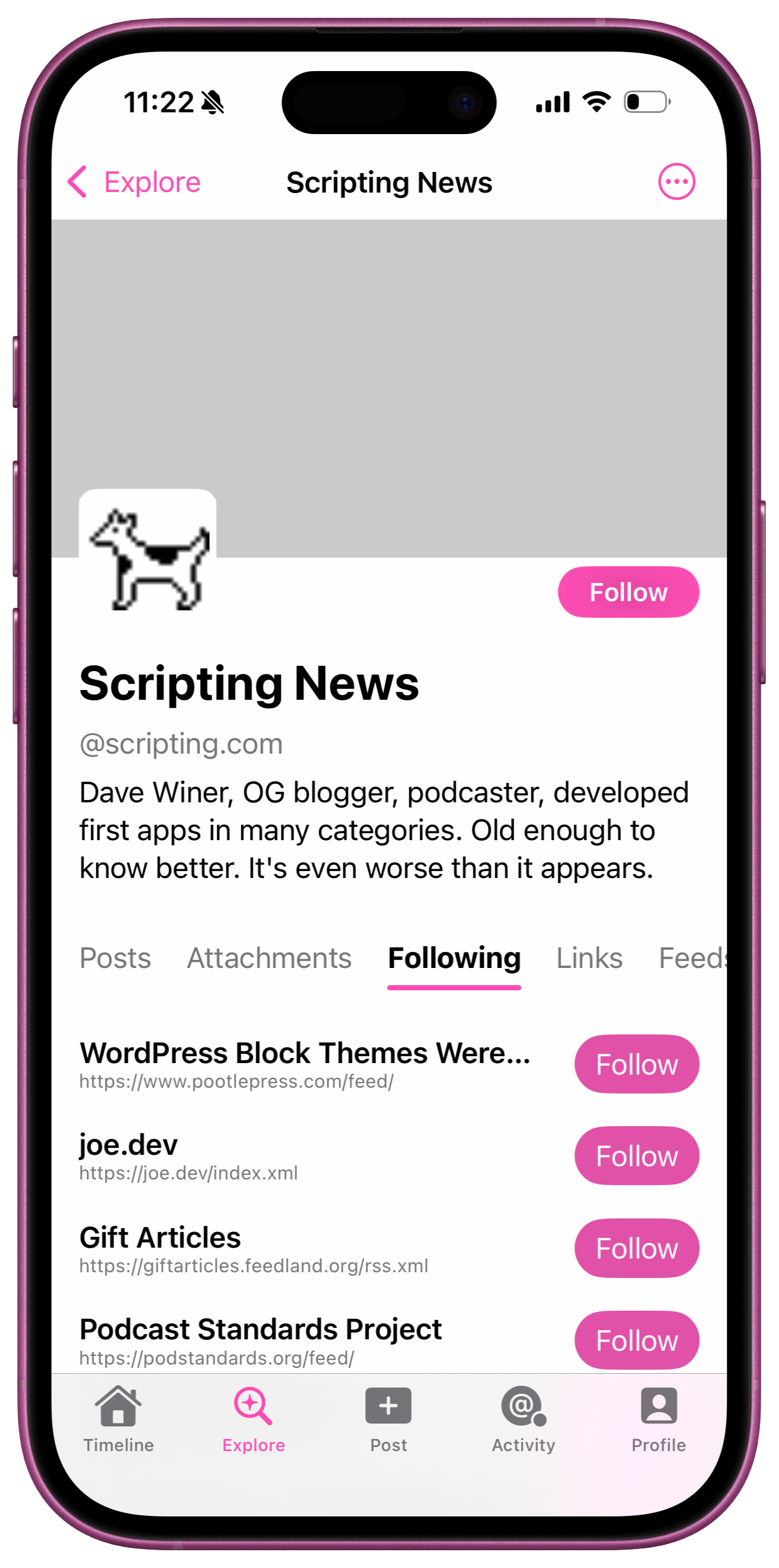
Sometimes the best way to discover new feeds is by way of recommendation from a feed you're already following. Tap the "Following" tab of any Profile to see their recommended feeds.
Add following links to your website
HyperTexting auto discovers link relations (e.g. <link rel='me'>) whenever you refresh a Profile in the app.
If a website publishes a following link (e.g. <link rel='following'>), HyperTexting will display followed feeds under the Profile "Following" tab.
Add a following link to your homepage <head> element with a valid href attribute that links to an OPML subscription list resource (e.g. the same file format you use to import/export feeds in your podcast player).
 1<!DOCTYPE html>
 2<html lang="en">
 3    <head>
 4        <title>HyperTexting</title>
 5        <link rel='following' href='https://hypertexting.com/following.opml'>
 6    </head>
 7    <body>
 8        <!-- layout template -->
 9    </body>
10</html>
NOTE: HyperTexting supports links matching the following element selectors:
link[rel~='following' i](recommended)link[rel~='subscriptions' i]link[rel~='blogroll' i]link[type='text/x-opml' i]
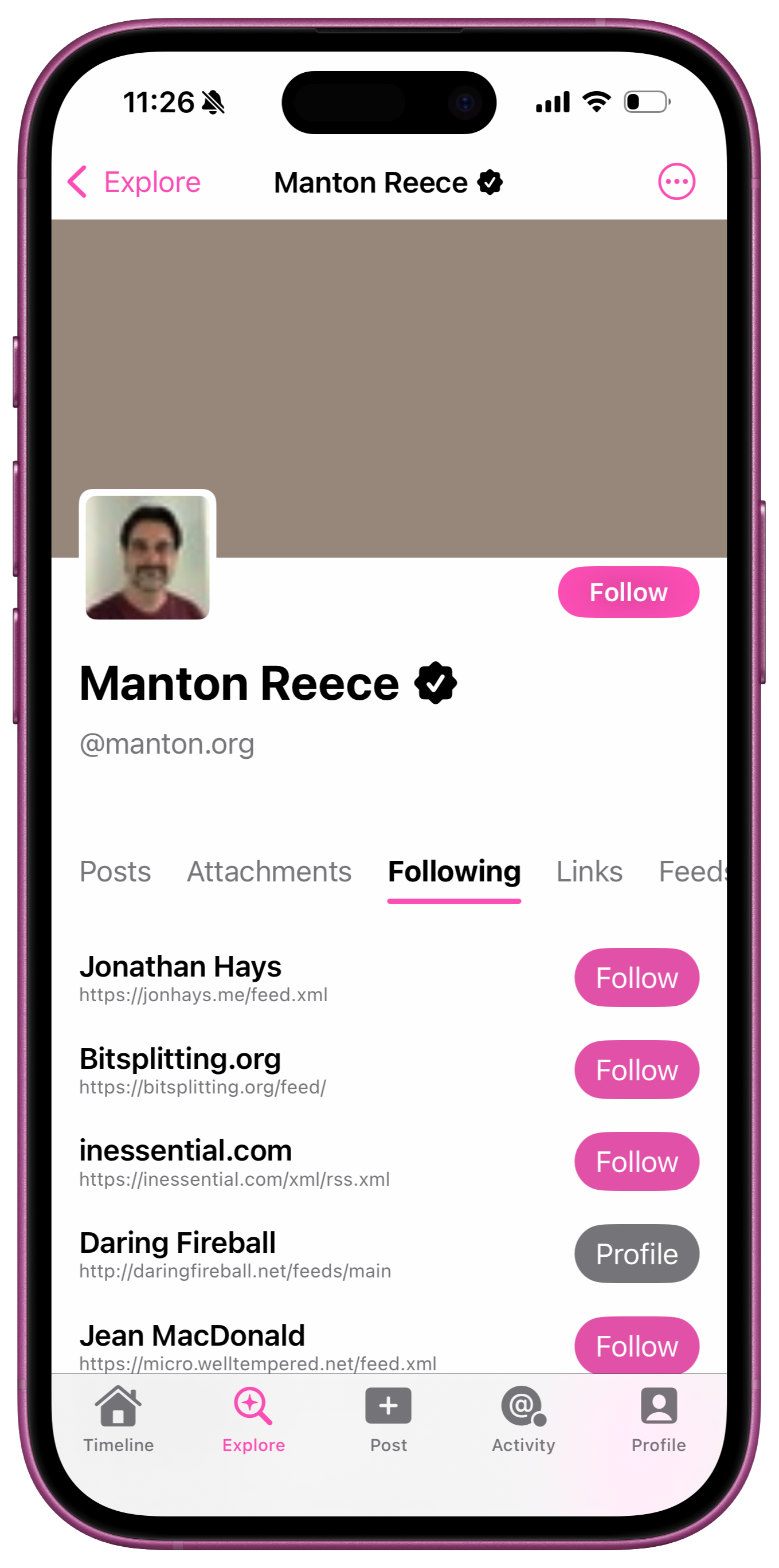
The Following tab is compatible with Ghost Recommendations and Micro.Blog Recommendations.
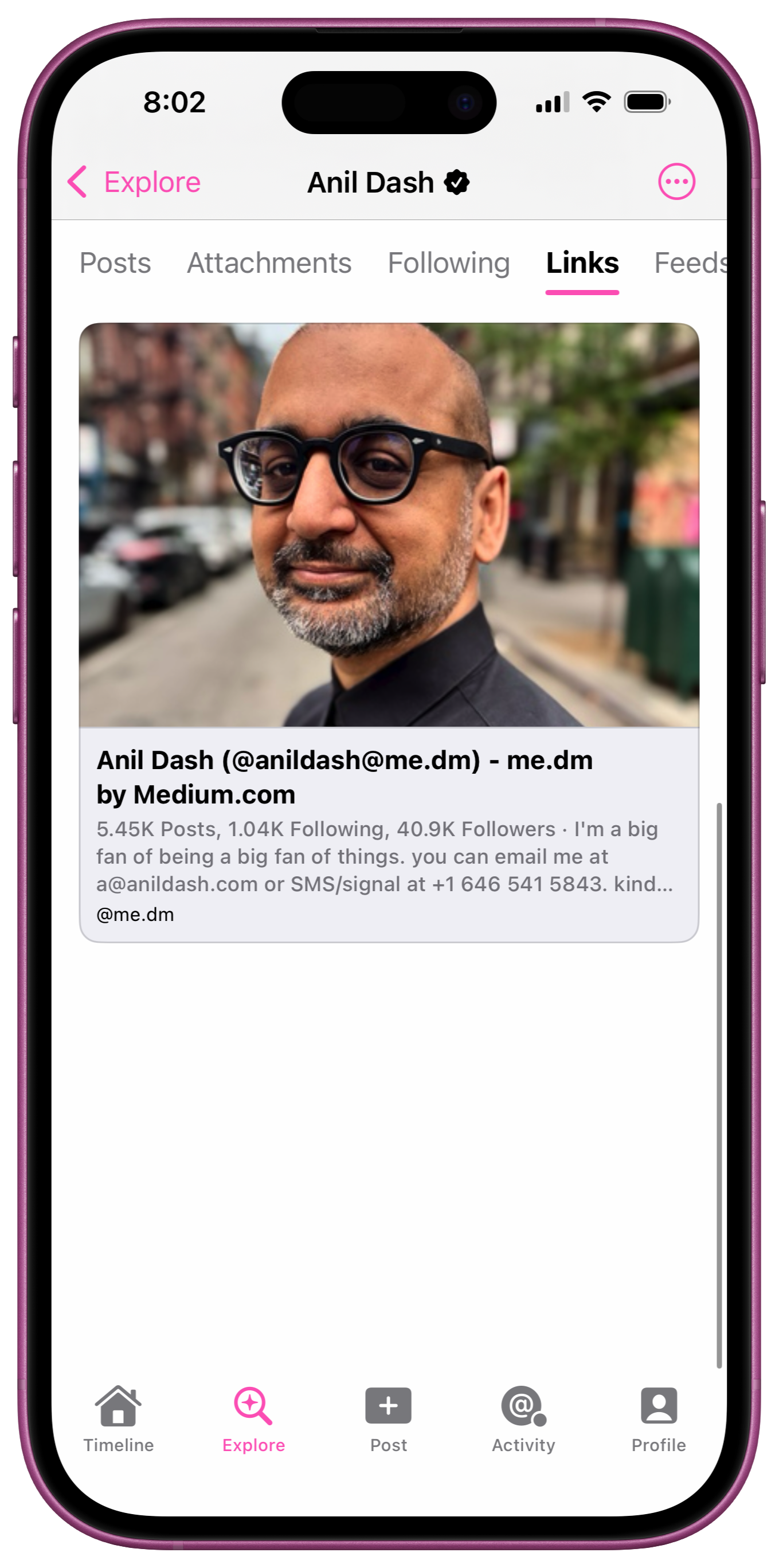
Links
HyperTexting auto discovers link relations whenever you refresh a Profile in the app.
If a website publishes any <link rel='me'> links, you can find them under the "Links" tab of a HyperTexting Profile.
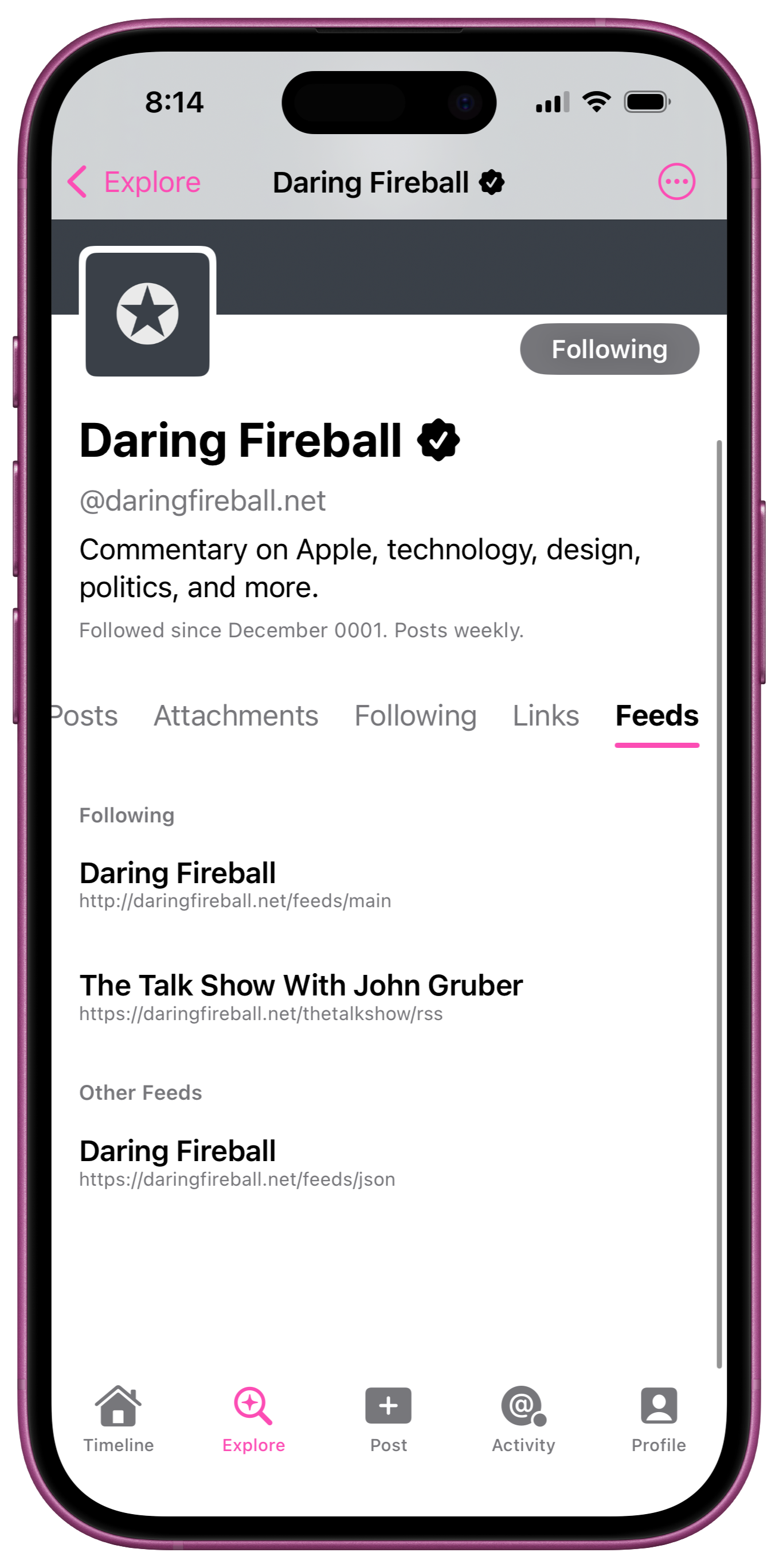
Feeds
A single HyperTexting Profile may have multiple feeds. For example, a website may publish one feed containing blog posts, and another feed for a podcast. Tap the "Feeds" tab of a HyperTexting Profile to see which feeds you're currently following, and any other feeds HyperTexting has discovered from that website. Long-press an individual feed to copy its link, or follow/unfollow it.
Your Profile
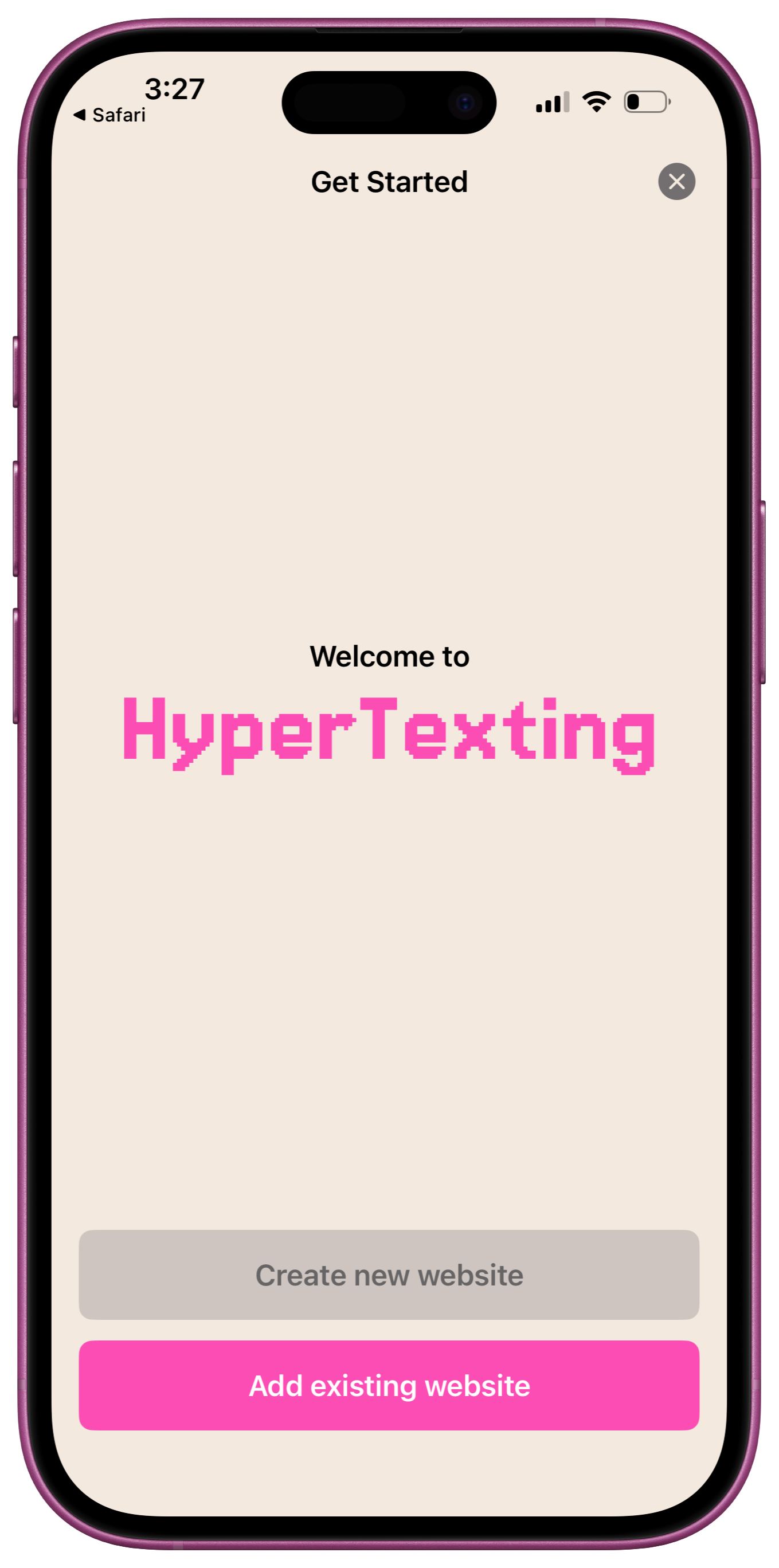
If you publish your own website or podcast feed, one of the first things you likely did with HyperTexting was find & follow your feed(s). That should have been pretty simple. But finding your Profile in "Explore" → "Following" isn't very convenient when you want to see how recent content appears in your profile. That's what the main Profile tab is for.
Tap "Profile" → "Add profile", or long-press the "Profile" tab and tap "Add profile" to add your feed(s) to HyperTexting, then select "Add existing website".
NOTE: support for creating new websites is coming later this year.
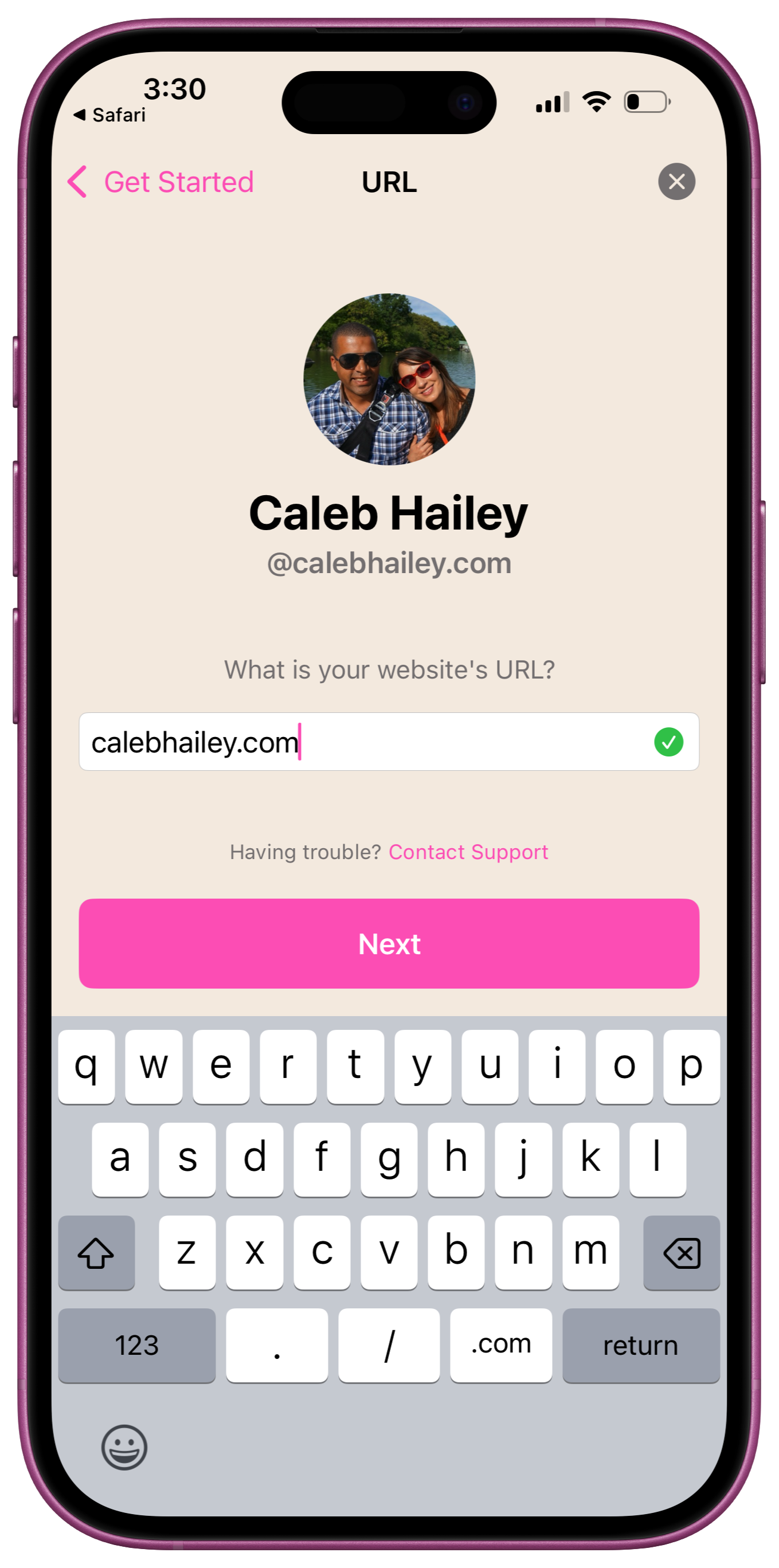
Add your profile
To add your website profile to HyperTexting, type in the URL of your website homepage. HyperTexting will automatically discover your website title and favicon, if available.
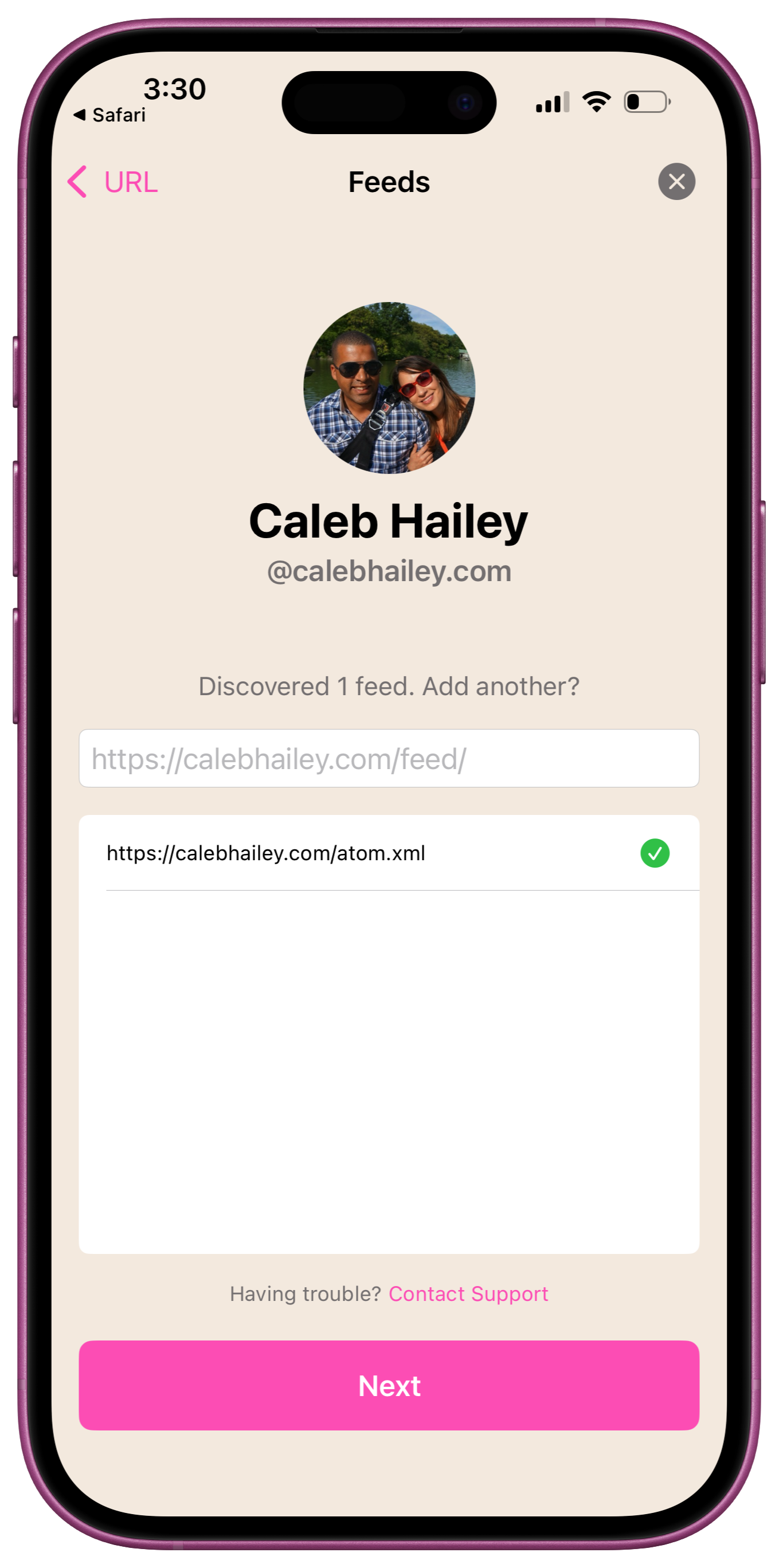
Add your profile feed(s)
Adding profiles to HyperTexting requires at least one feed.
HyperTexting will automatically discover feeds linked from your home page, if available.
To add additional feeds, just paste the feed URL (e.g. https://example.com/rss.xml).
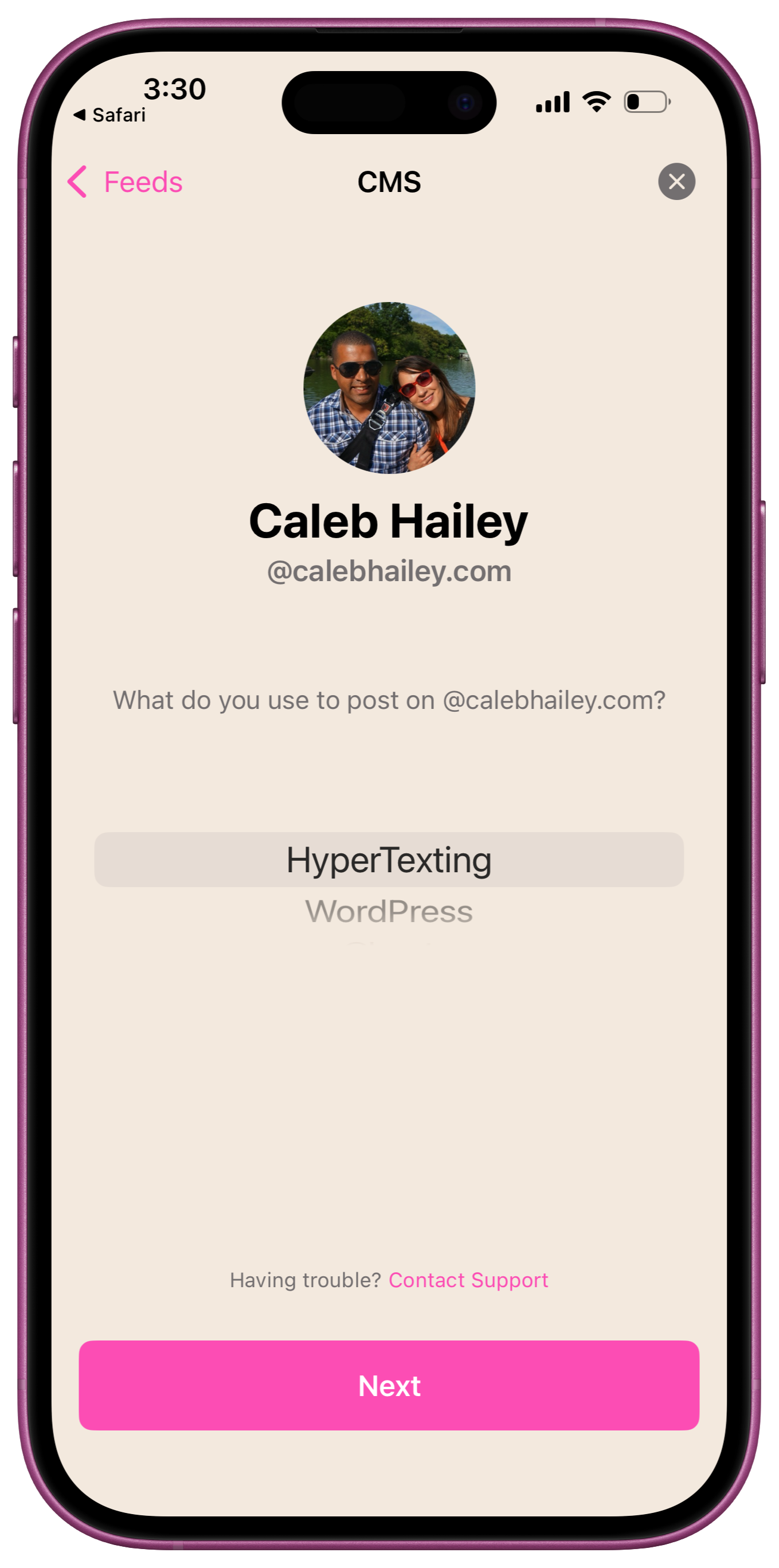
Choose your profile CMS
To finalize your new profile, select which content management system (CMS) you use to update your website. Configuring your CMS tells HyperTexting which composer to present when you tap "Post". If your CMS is not yet supported, select other to add a "read only" profile.
COMING SOON: Support for publishing to HyperTexting, Wordpress, Ghost, and Hugo website(s) is coming soon, because posting to your website should be easier that posting on social media.
To learn more about the upcoming publishing features in HyperTexting, just tap "Post" after configuring a profile and join the waitlist.
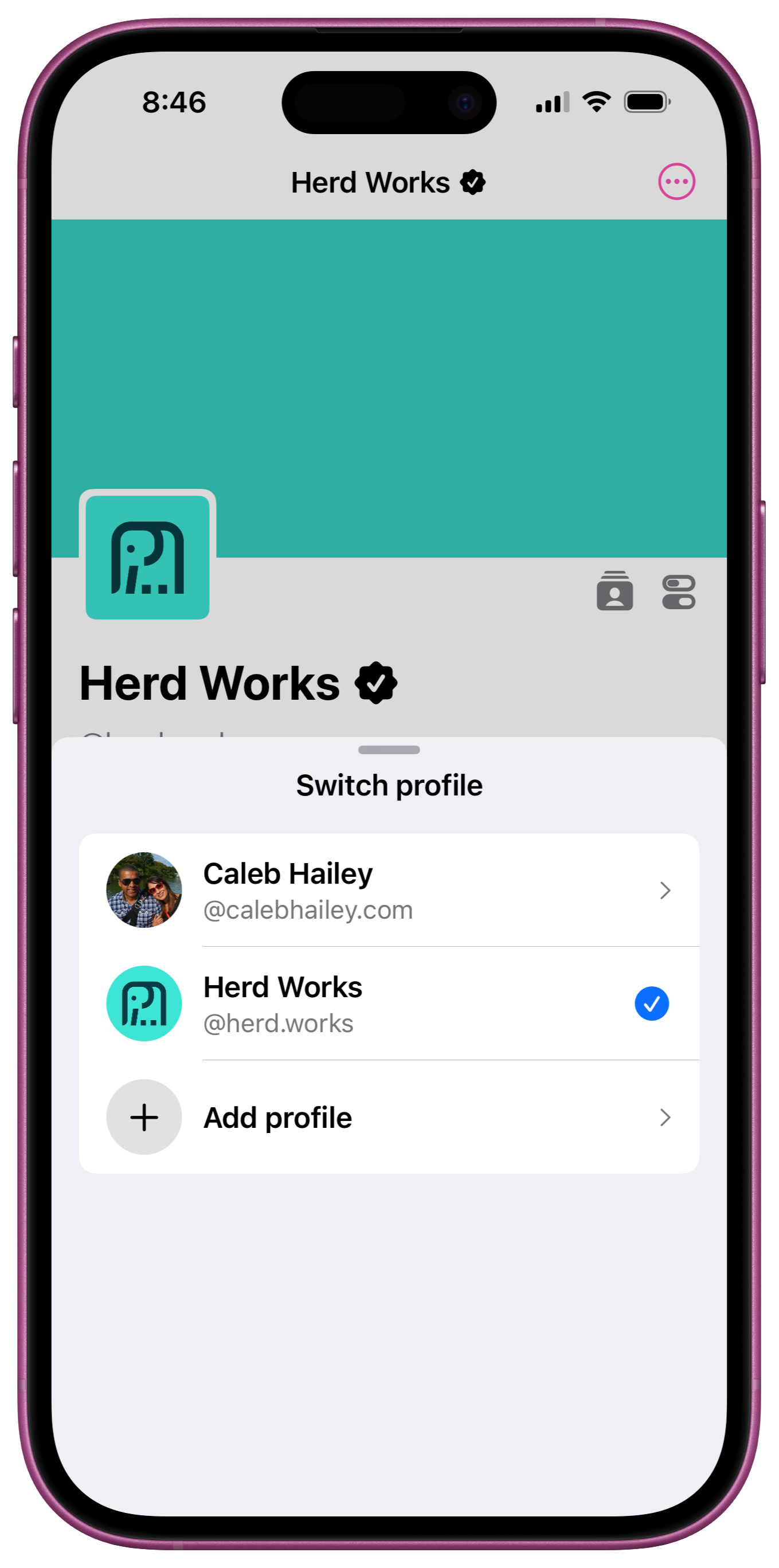
Multiple Profiles
HyperTexting supports multiple profiles. To add an additional profile, long-press the "Profiles" tab and select "Add profile". To switch profiles, long-press the "Profiles" tab and select the desired profile.