Get Started
Welcome to the HyperTexting User Guide! HyperTexting is a destination news feed for the open social web. It's a modern take on the "for you" feed minus the ads, algorithms, and AI-generated slop.
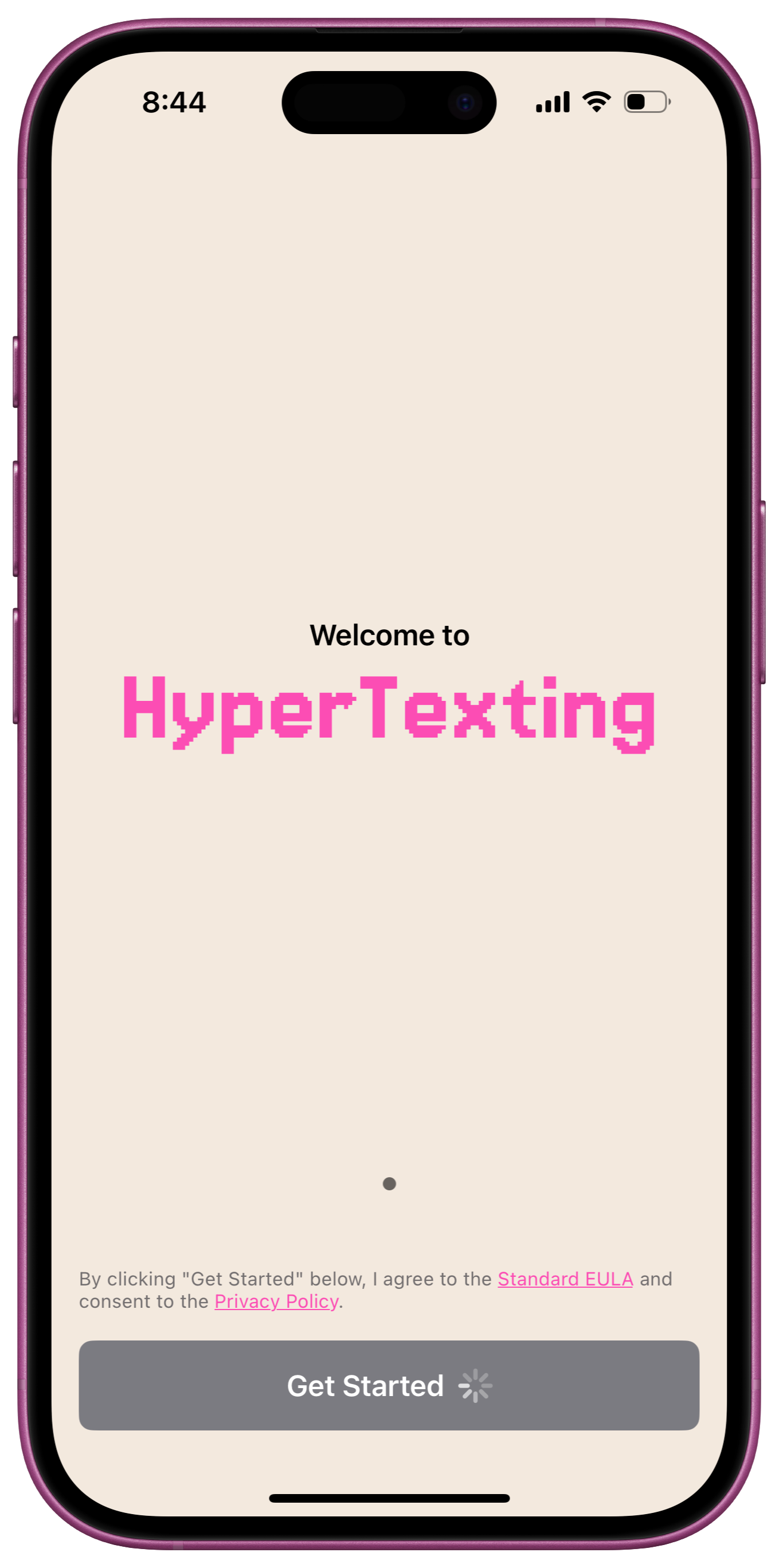
Welcome
The first time you launch HyperTexting it performs some initial setup, including downloading the latest posts from some default feeds. The "Get Started" button will be temporarily disabled while this initial setup completes, as indicated by the animated progress icon.
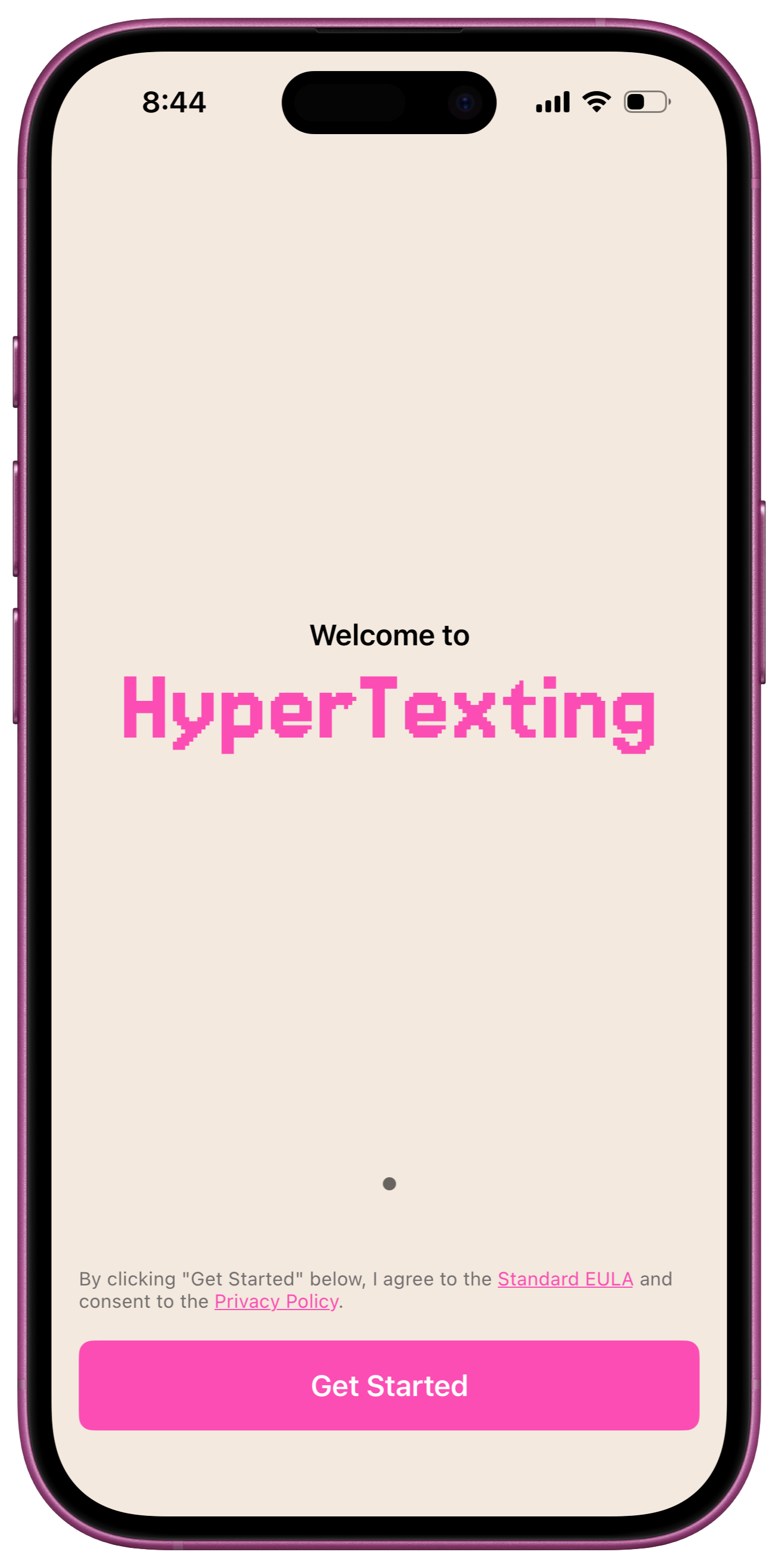
Once the one-time setup process has completed, the "Get Started" button is enabled. Tap "Get Started" to launch HyperTexting.
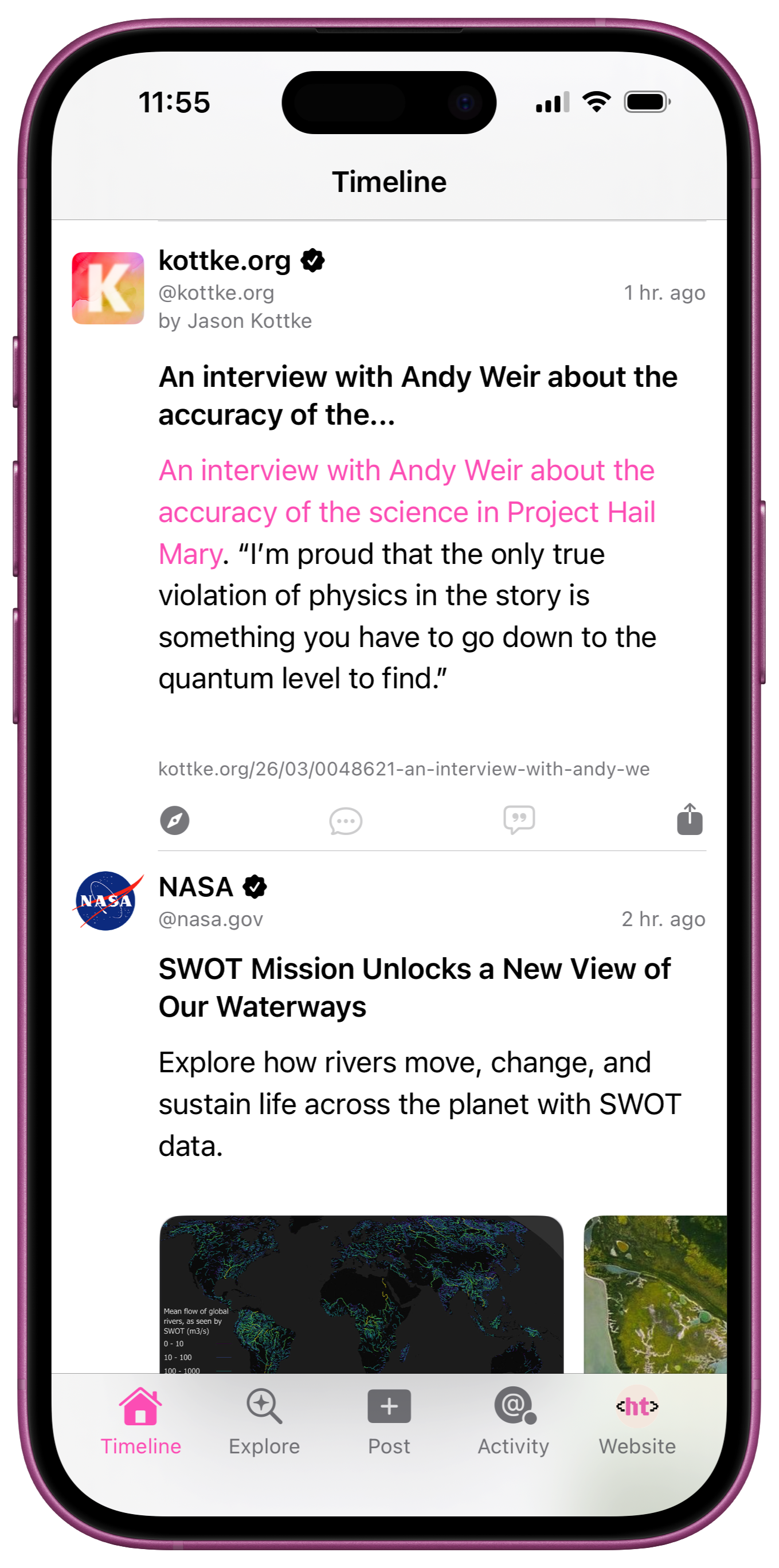
Timeline
The first thing you see when you open HyperTexting is the "Home" tab. This is where you will spend most of your time using HyperTexting. The Home tab is your timeline – a feed of feeds, containing posts from all of the feeds you follow. The HyperTexting timeline should look & feel like a social media timeline, minus the ads, algorithms, and AI-generated slop.
To browse your news feed, simply tap "Home" and scroll the timeline. Tap Home again to jump to the top, and perform a pull-to-refresh gesture to check for new posts. Tap on the profile portion of a post to view more posts from that website, or tap the text content of a post to open the post detail view.
Profiles
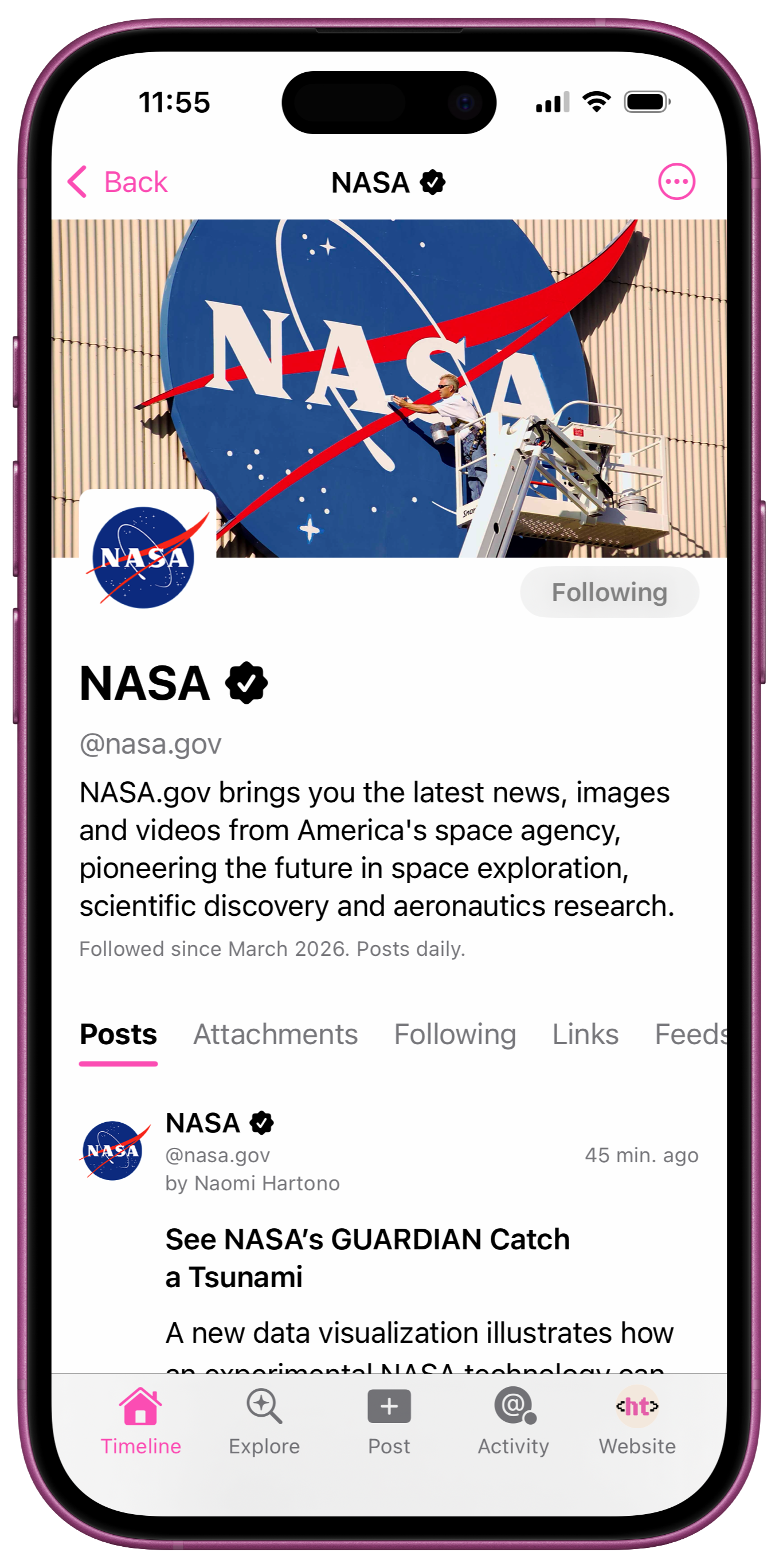
HyperTexting organizes feed content around the websites they originate from, and every website you follow gets its own "Profile" page. To view a website profile, tap the profile portion of any post, or tap "Explore" → "Following".
PROTIP: Some websites offer multiple feeds (e.g. ESPN, New York Times, or The Wall Street Journal) so you can pick and choose which topics to follow. Other websites offer separate text and podcast feeds (e.g. Daring Fireball and The Talk Show). HyperTexting profiles makes it easy to keep track of the content you care about, even when they come from multiple disparate feeds.
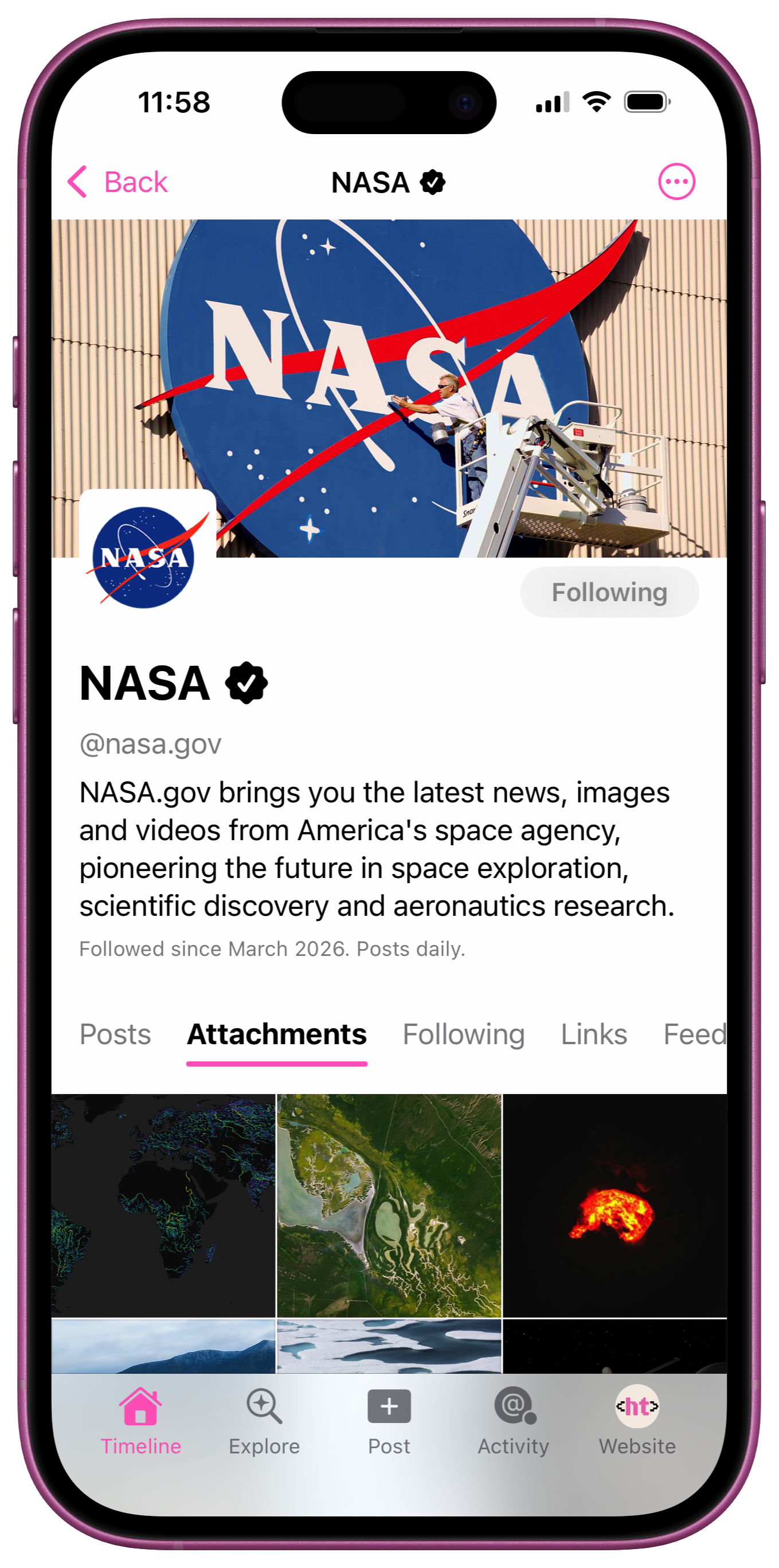
Visit a website profile page and tap the "Attachments" tab to view all attachments from a website's recent posts. Attachments include shared links, images, audio (e.g. podcasts), videos, and more. Scroll the attachments grid to browse, tap an attachment to view it in full screen mode. You can even swipe left and right in fullscreen mode to view individual attachments.
Posts
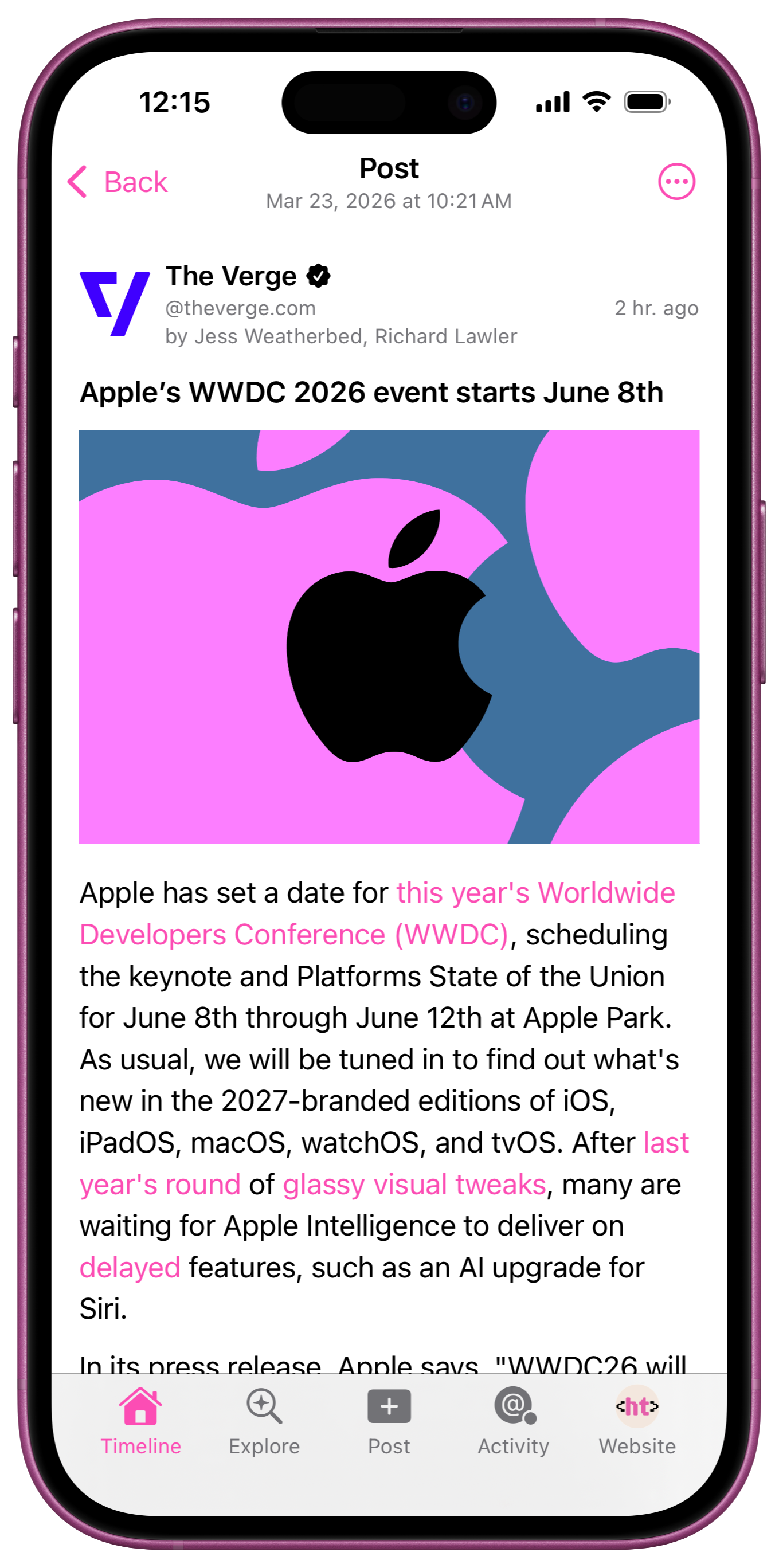
Tap on any post in any timeline to open the post detail view. Scroll the post to read the full contents, which may differ from the post summary content that appeared in the timeline. Some posts will also include inline images and other media.
NOTE: some feeds provide the full-text contents of their posts (e.g. a blog post or podcast show notes). Other feeds may contain only a brief summary of the content, and a link to view the full-text content on their website. Some websites that publish feeds with content summaries may make full-text feeds available to paying subscribers. In any case, these are editorial decisions made by content owners, and HyperTexting does not try to circumvent these decisions.
Attachments
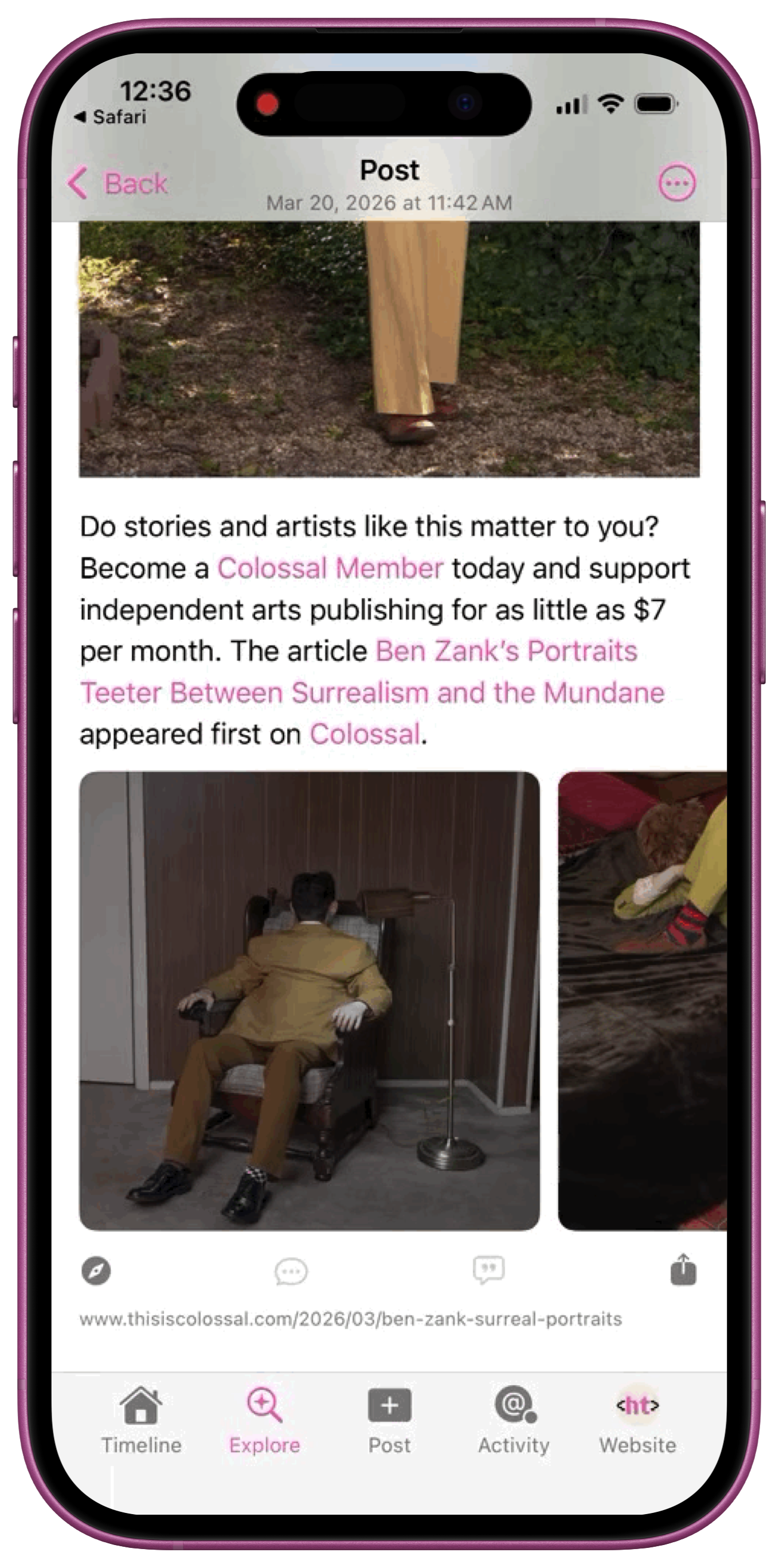
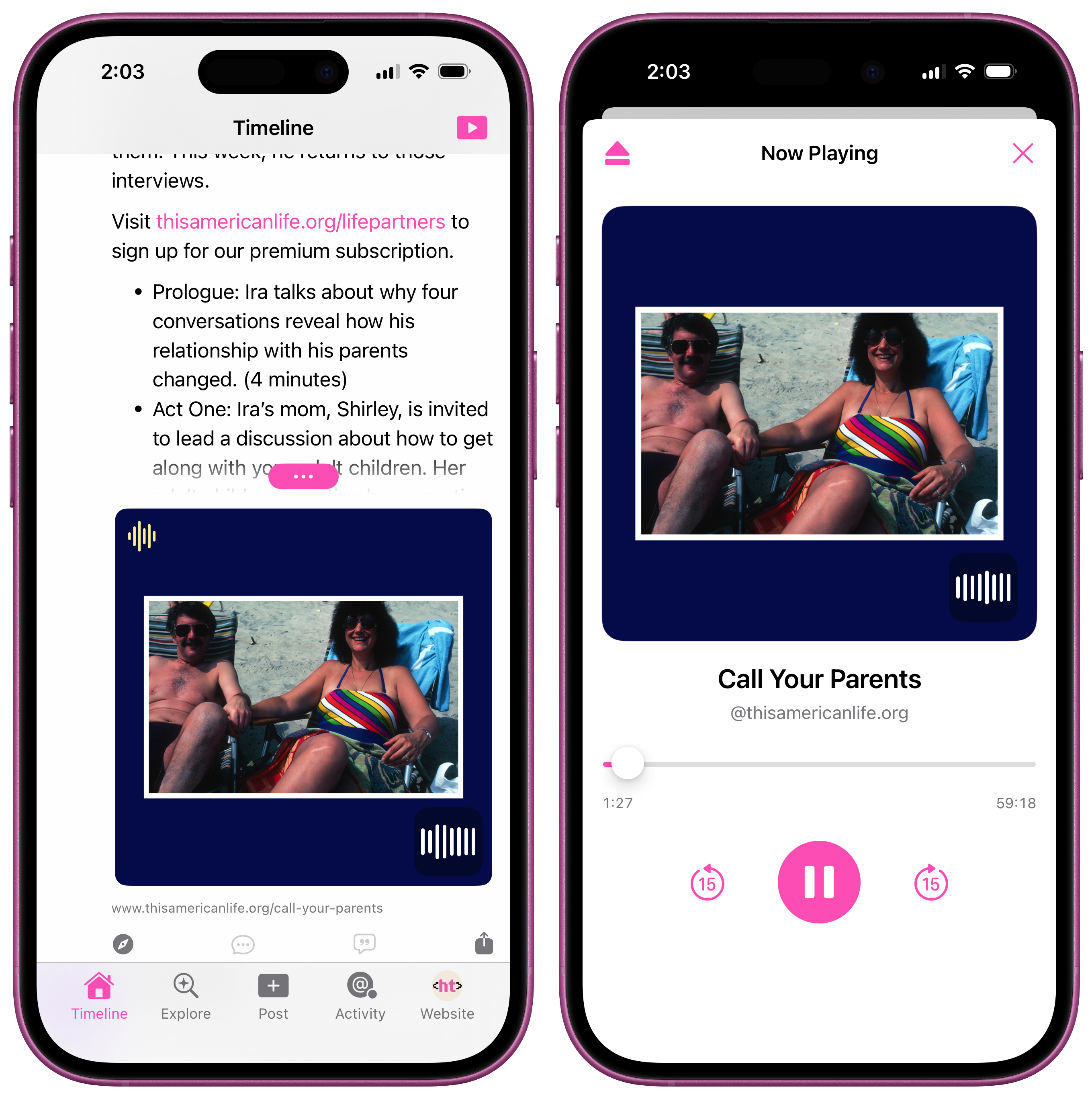
Post attachments appear at the bottom of every post. Swipe left and right to browse a post's attachments, and tap an attachment to view it in full screen mode. Tapping on an audio or video attachment will play the audio or video clip.
Media Player
Tapping on an audio or video attachment will play the media. Currently playing media can be accessed in-app by tapping the player icon in the toolbar.
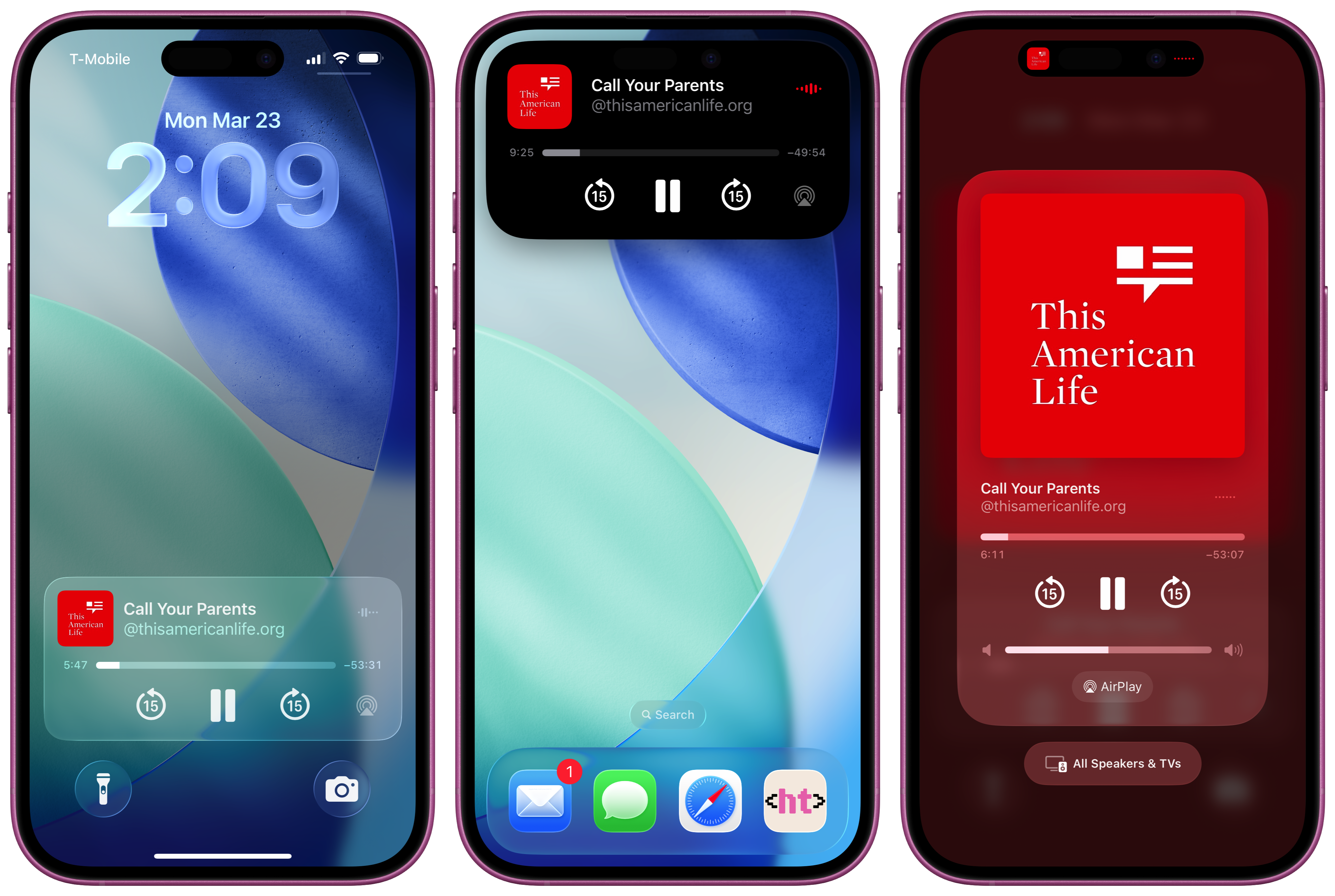
Currently playing media can also be controlled from the Lock Screen, Dynamic Island, and Control Center.
Responses
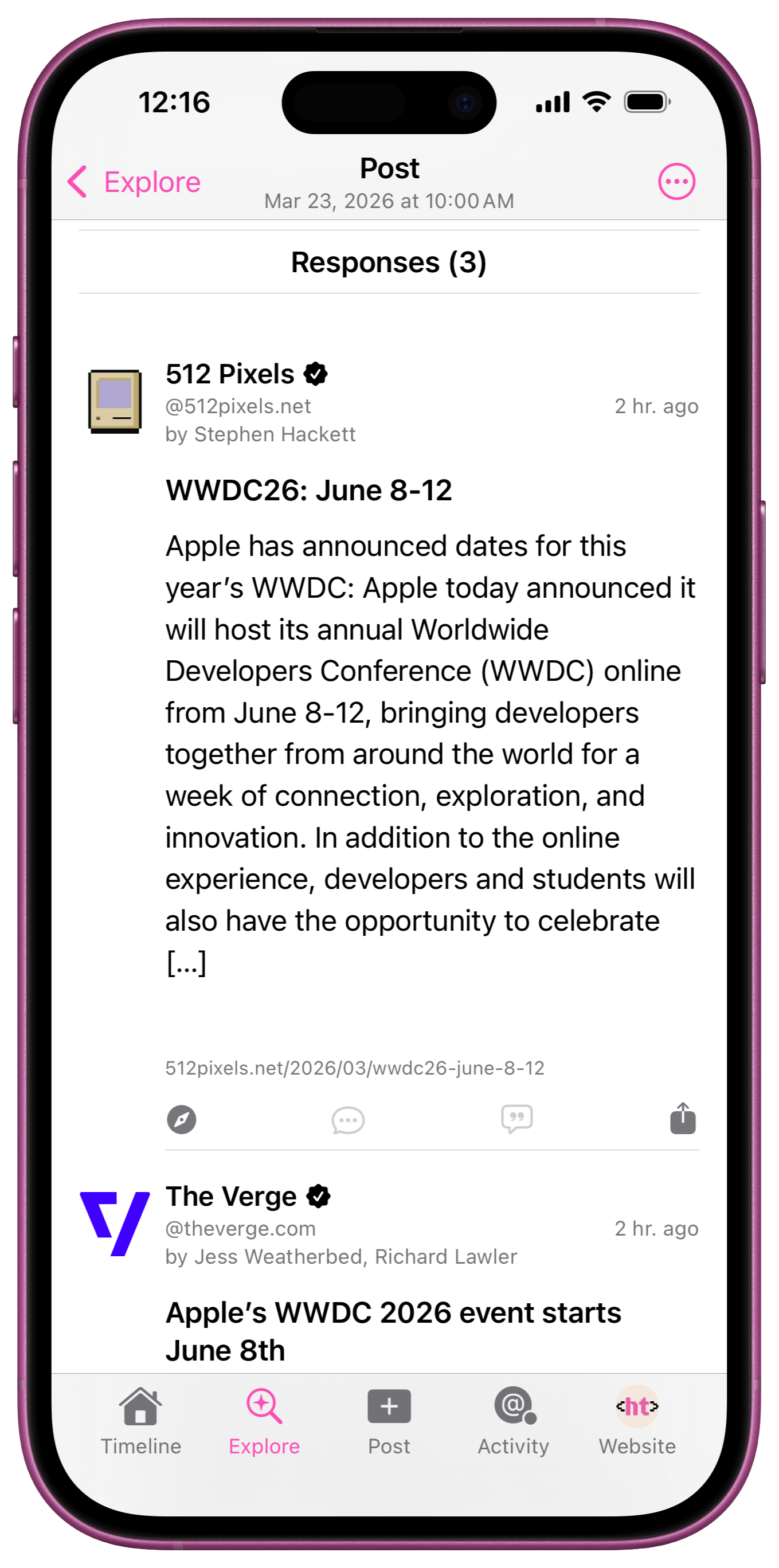
Responses are a great way to follow conversations between the feeds you follow. Scroll to the bottom of a post detail view to see responses from the feeds you follow. A response is any other post that links back to the post you are viewing.
NOTE: conversations on the open social web are generally more thoughtful than what you may be accustomed to from social media. Instead of dozens or hundreds of replies, you'll likely see just a few high-quality responses.
Explore
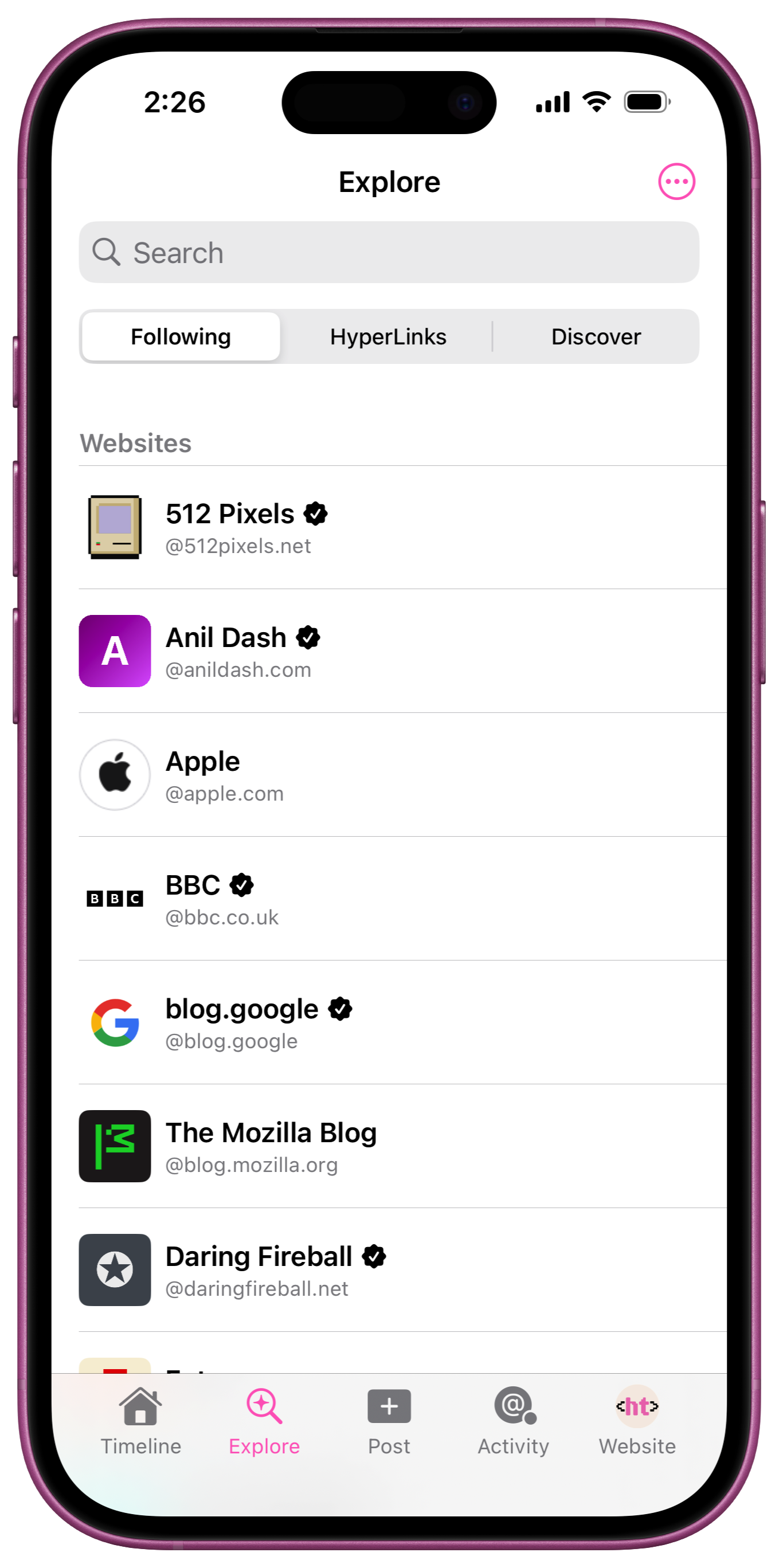
Tap the "Explore" tab to explore your feediverse.
Following
Tap "Explore", then tap "Following" to view a list of the feeds you follow, grouped into websites. Tap on any website to view the website profile.
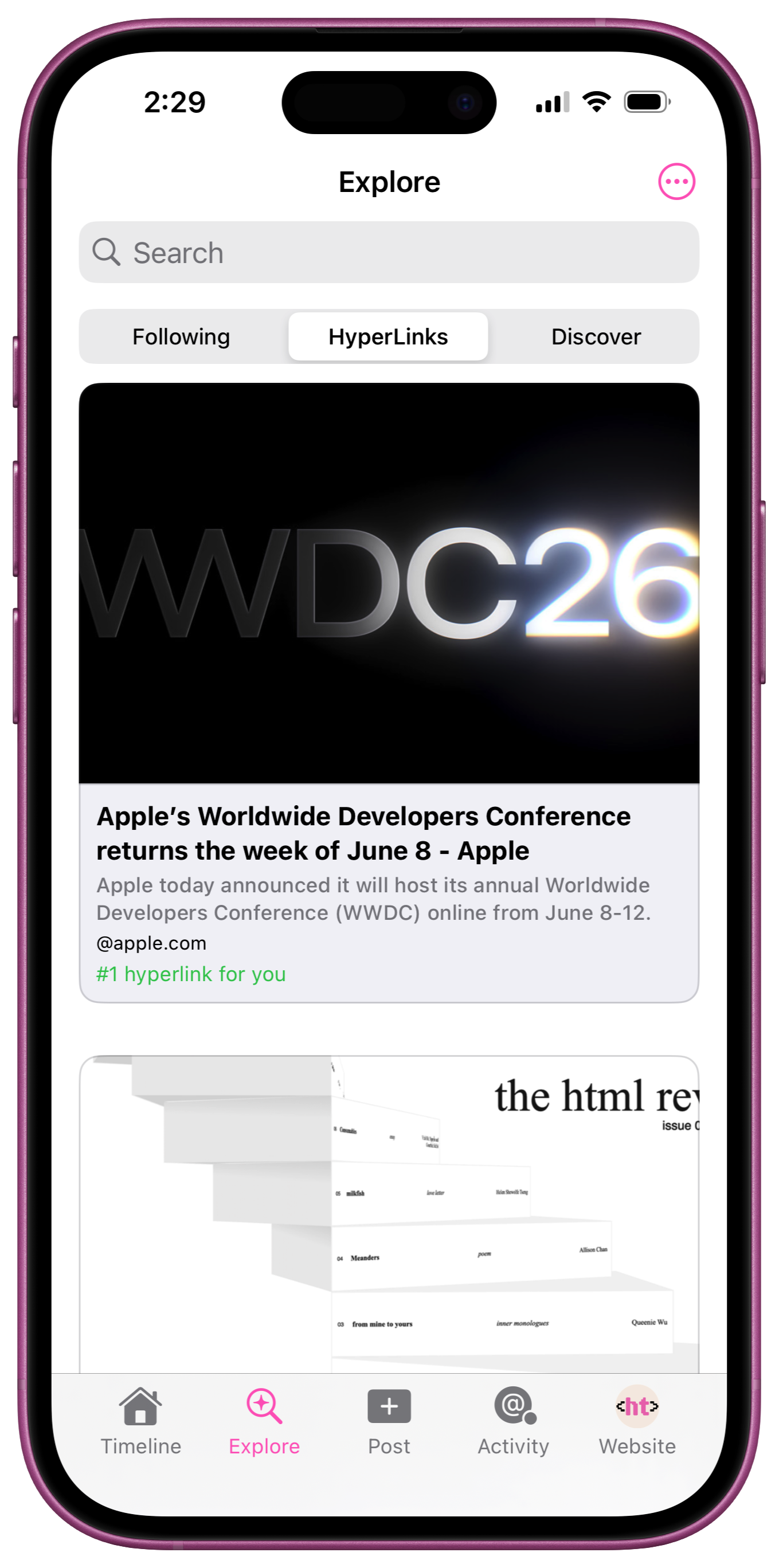
Hot HyperLinks
Tap "Explore", then tap "HyperLinks" to view the top 100 most linked pages from the feeds you follow. If a Hot HyperLink is from a feed you follow, it will open in-app, showing the post detail view and responses; otherwise it will open in Safari.
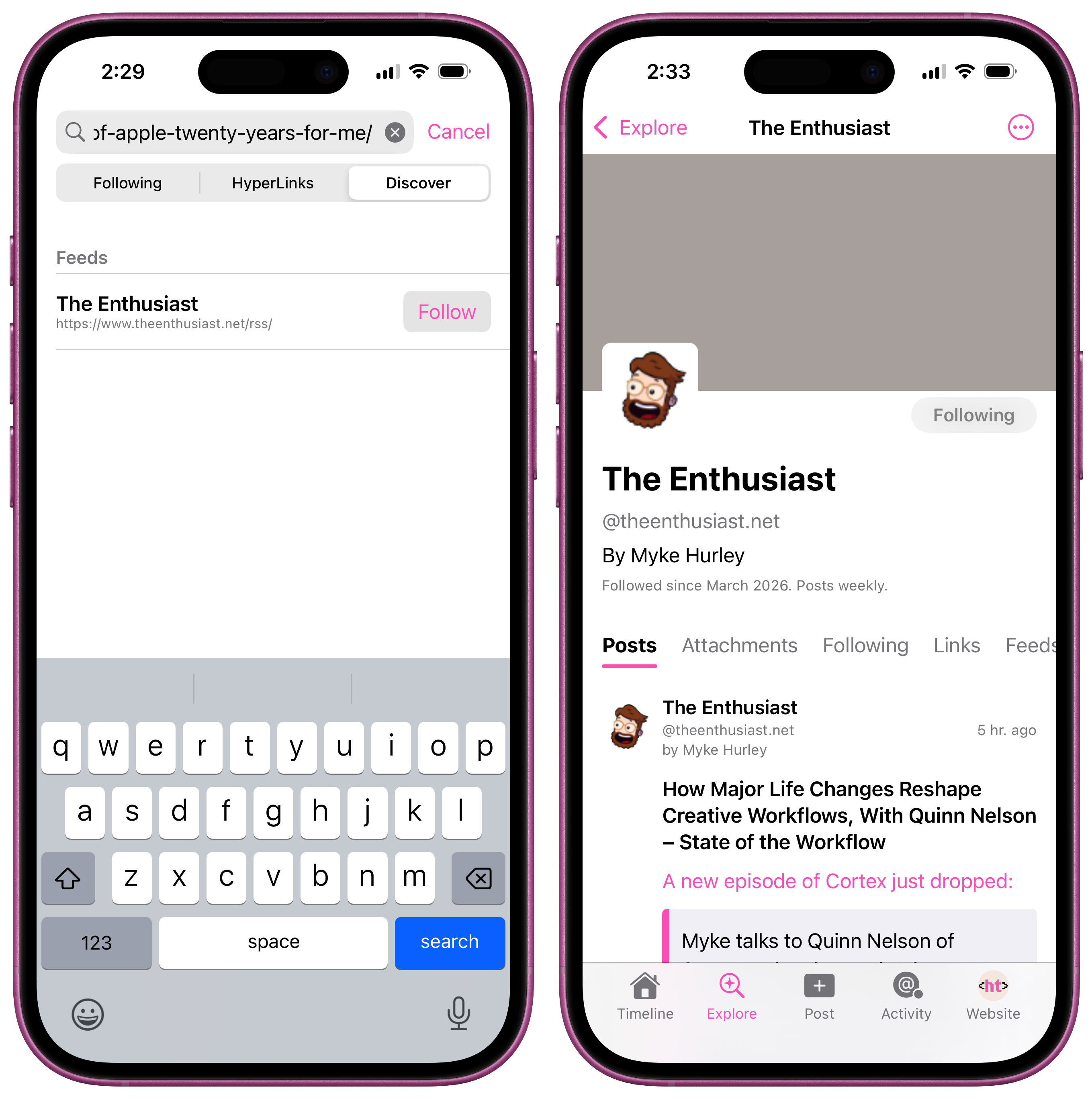
Discover (Search)
Search by website or paste any link to discover new feeds to follow.
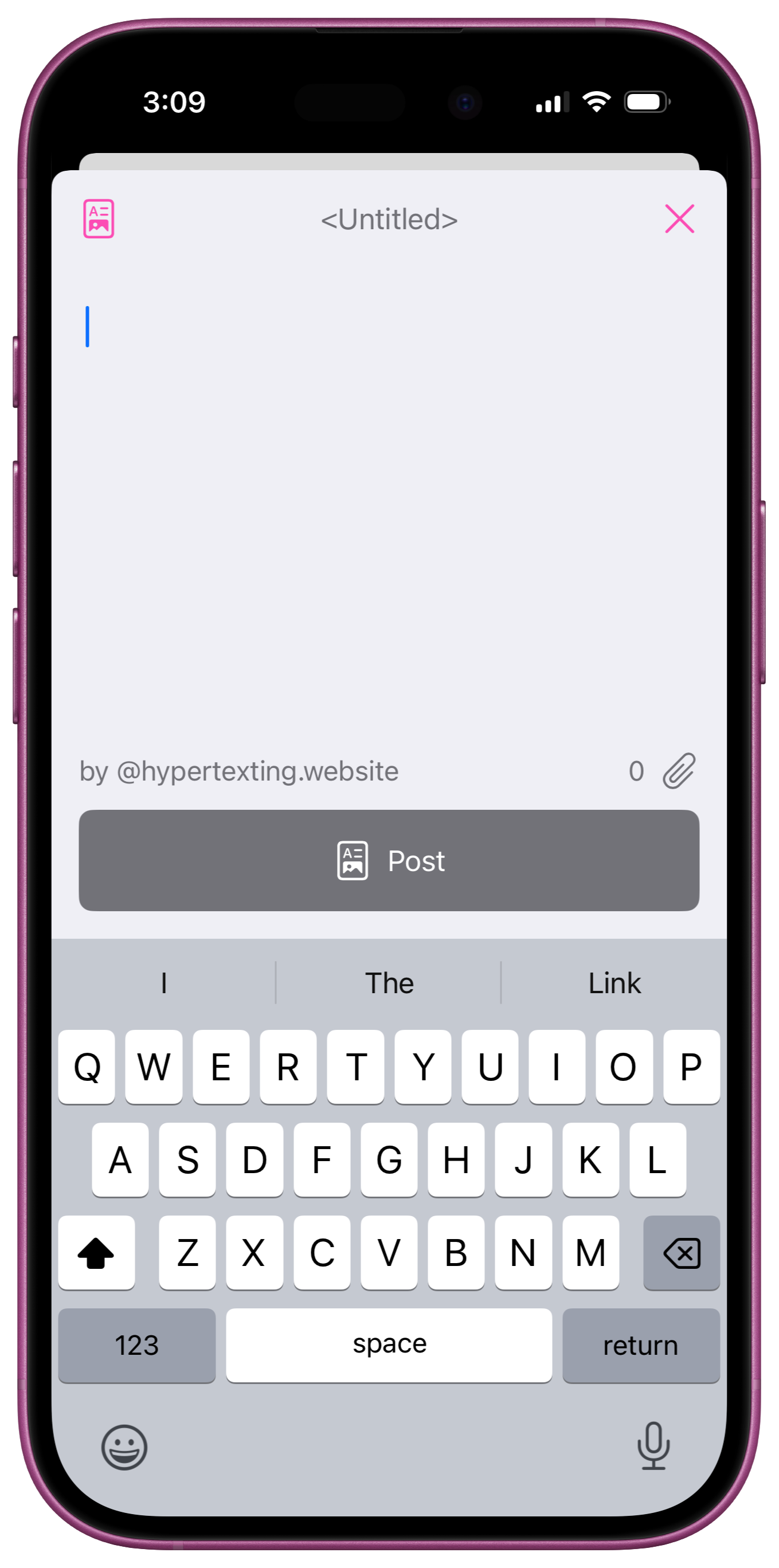
Composer
Tap "Post" to post to your website. The HyperTexting Composer makes updating your website as easy as sending a text message or posting on social media.
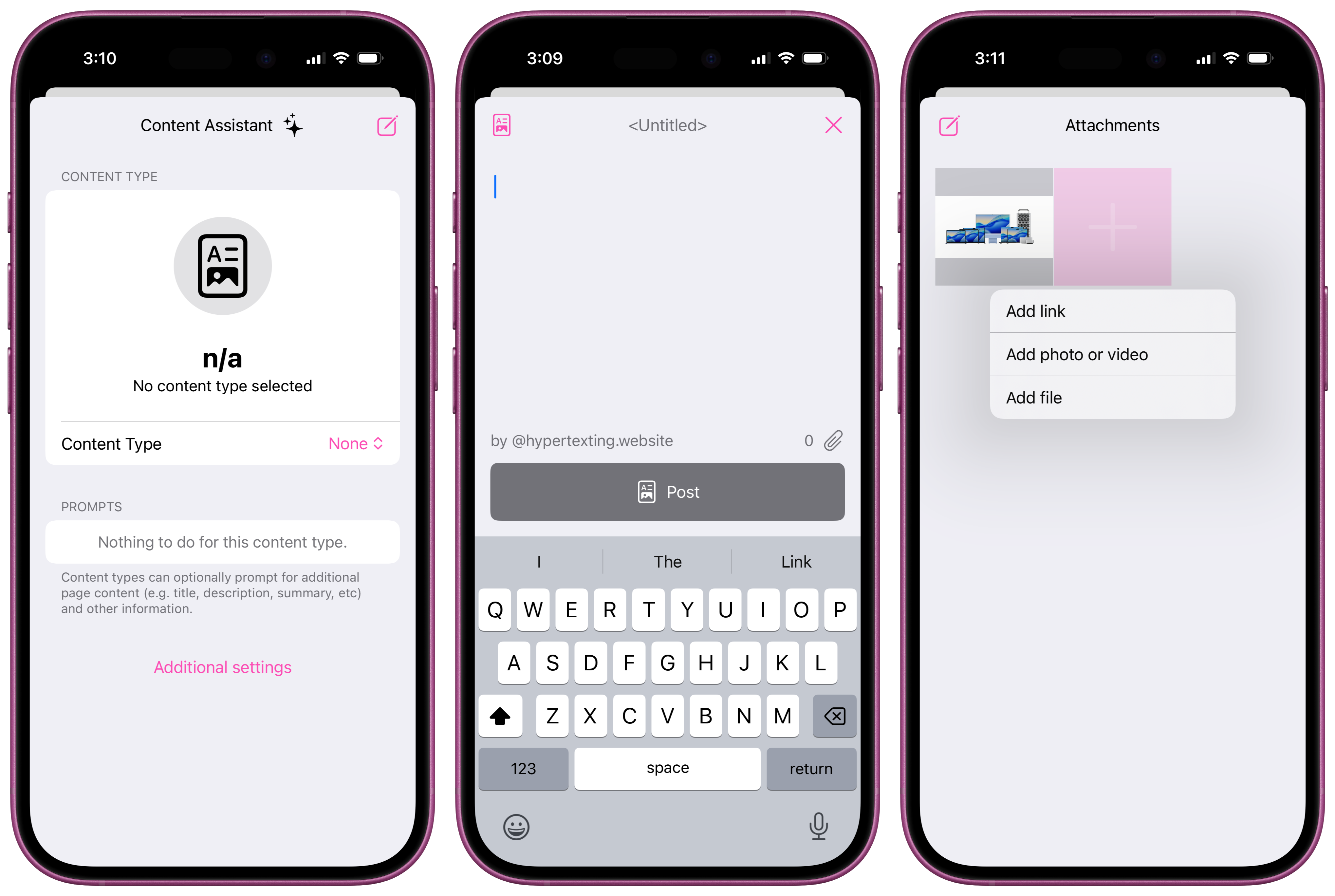
COMING SOON
HyperTexting will provide support for posting to @hypertemplates.net, @worpress.org, @ghost.org, and @gohugo.io websites in an upcoming release.
TestFlight: join the HyperTexting Community and like or comment on this post to join the HyperTexting TestFlight and help us test the Composer.
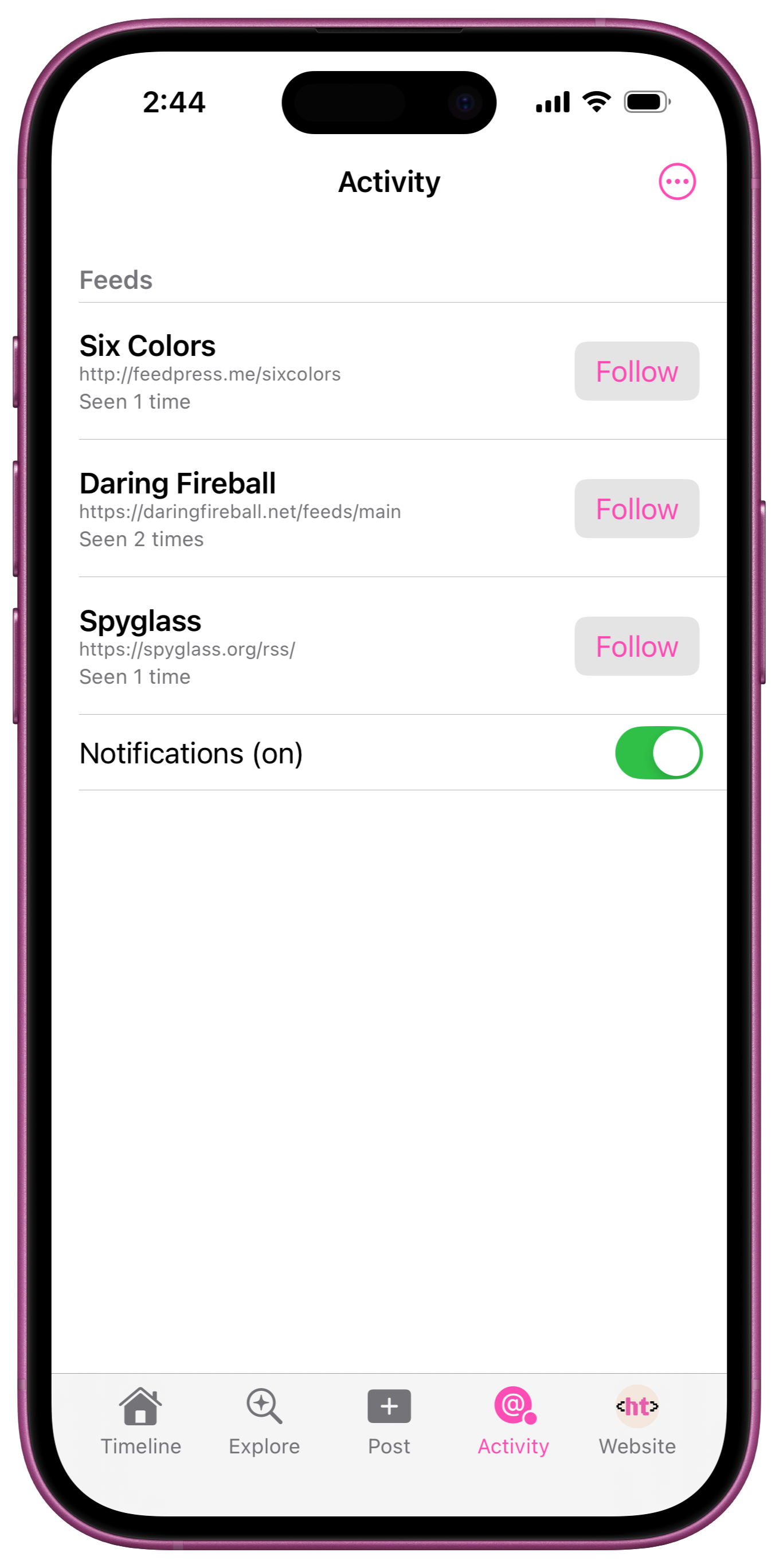
Activity
Tap "Activity" to view your HyperTextinbg activity feed. HyperTexting activities will eventually include things like post notifications, but for now the first supported activity is discovered feeds from websites you have visited.
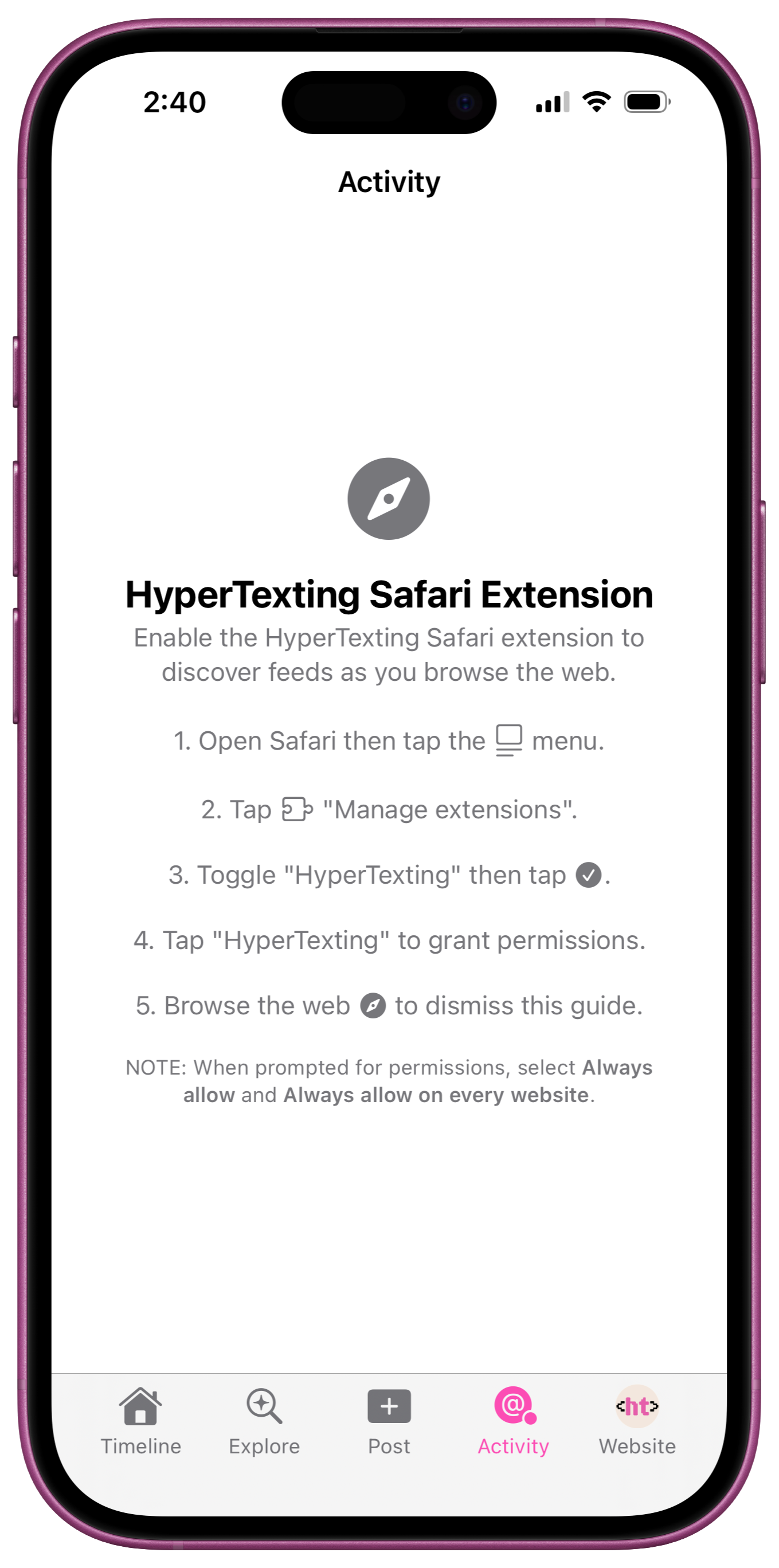
Safari Extension
HyperTexting feed discovery is powered by a Safari Extension that checks for feeds from the websites you visit. To enable feed discovery, tap "Activity" then follow the instructions.
NOTE: the HyperTexting Safari Extension, like the rest of HyperTexting, is designed to protect your privacy. Both the extension and the app process 100% of your data on-device. It simply scans pages you visit in Safari for links to feeds, and it logs discovered feeds to a file that can only be read by the main HyperTexting app.
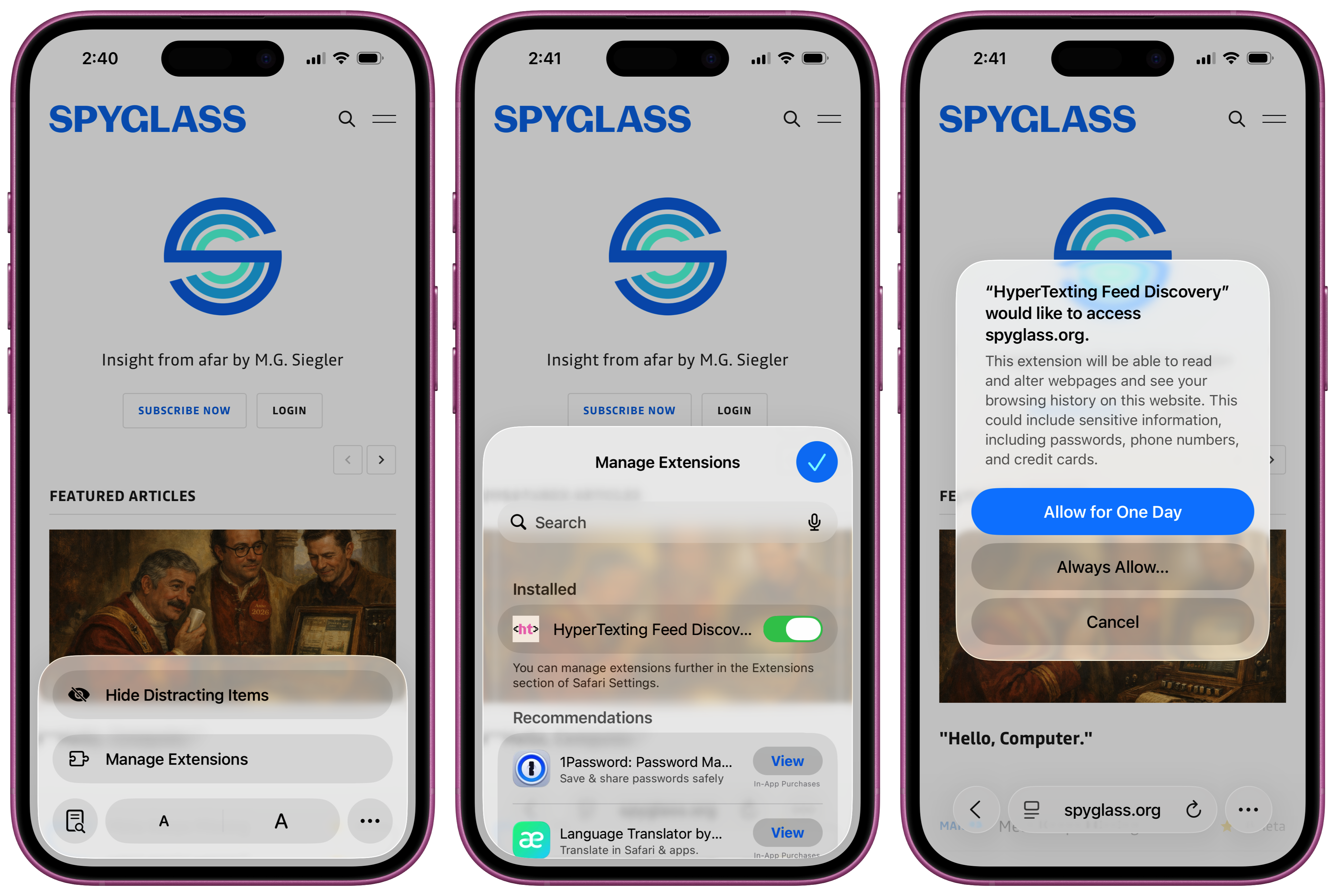
The HyperTexting Feed Discovery extension can be enabled from Safari's page menu. Tap "Manage Extensions", then tap "HyperTexting Feed Discovery" to enable the extension, and tap the checkmark to return to the extension manager. Tap "HyperTexting Feed Discovery" again to manage the extension permissions, then tap "Always Allow..." and "Always Allow on Every Website".
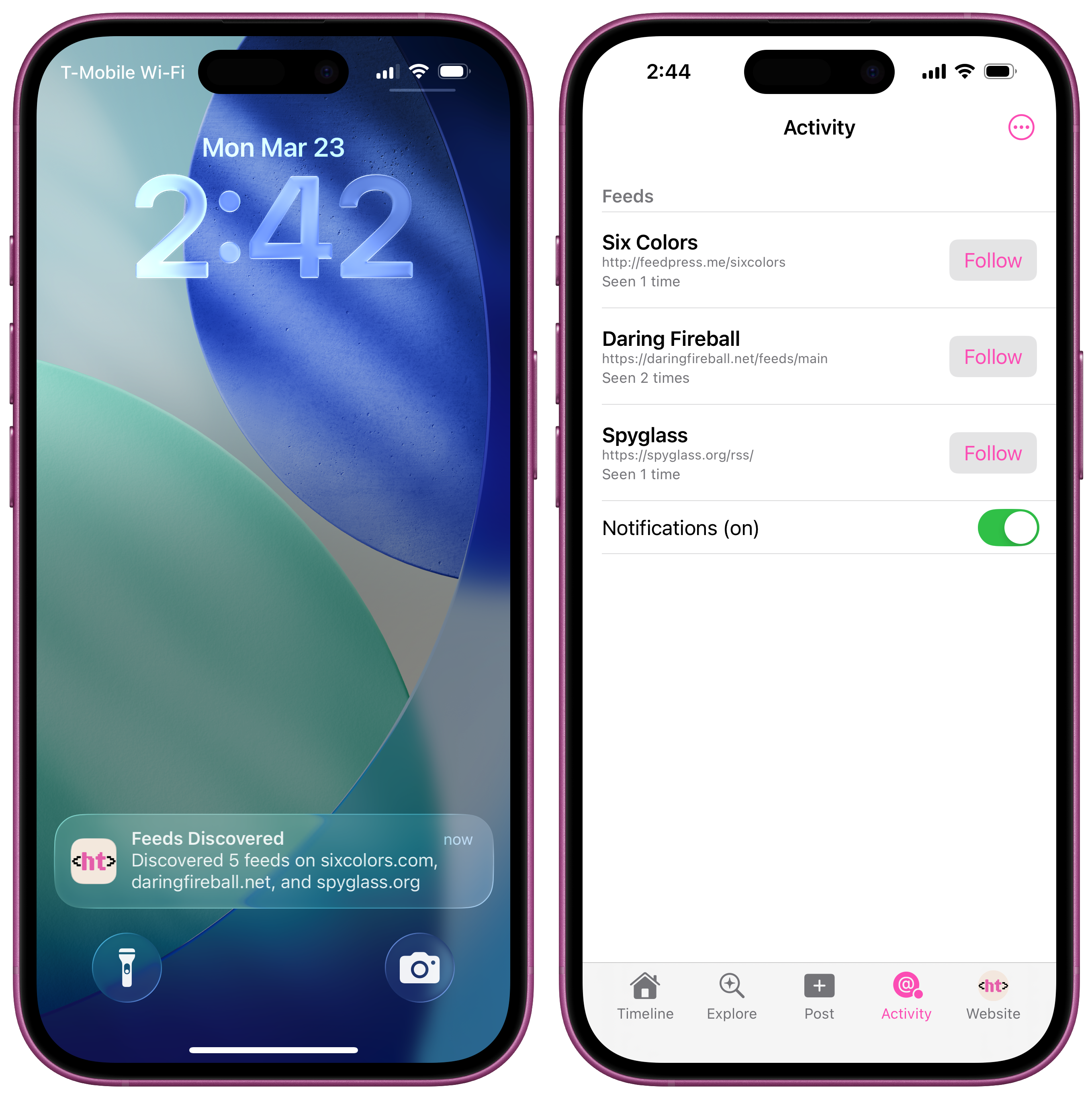
Once installed, HyperTexting will notify you of discovered feeds as you browse the web. Tap on the notification to open HyperTexting and view your discovered feeds in the Activity tab.
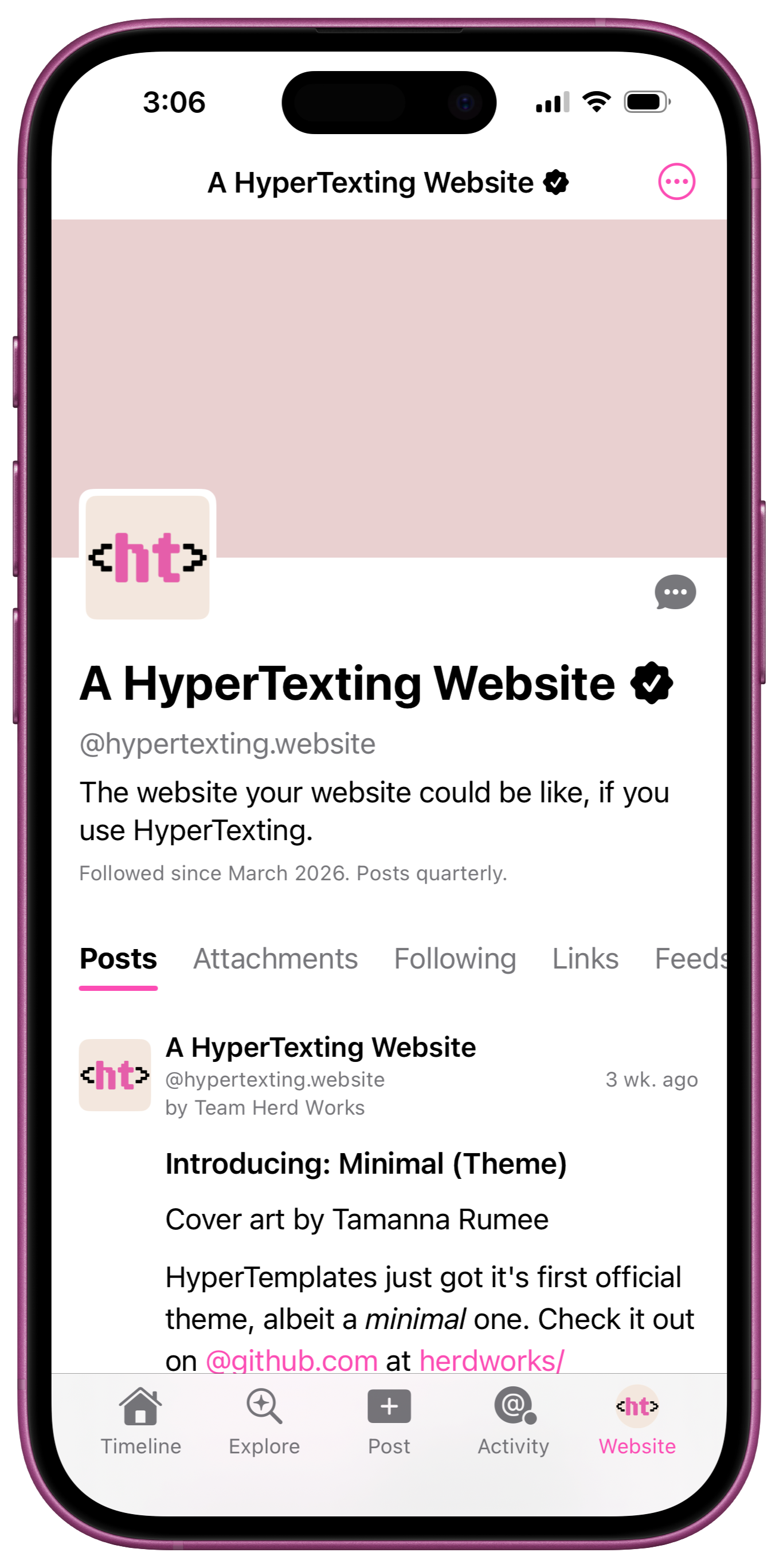
Website(s)
Tap the "Website" tab to open your active website profile.
The @hypertexting.website isn't your website.
But it is the website your website could smell be like if you joined the HyperTexting TestFlight. 🚀
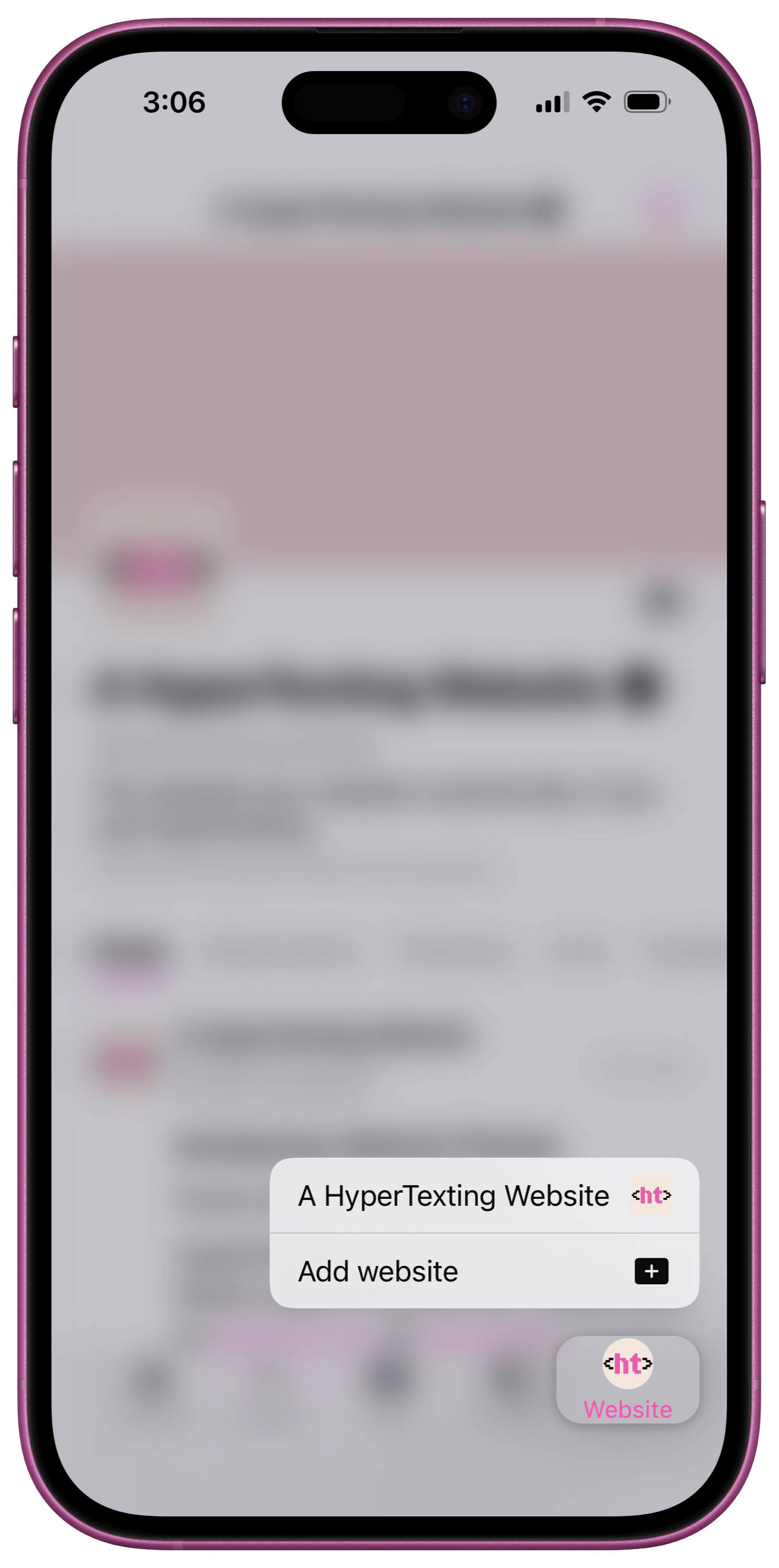
Multiple Profiles
Long-press the "Website" tab to switch the active website profile, or add a new website.
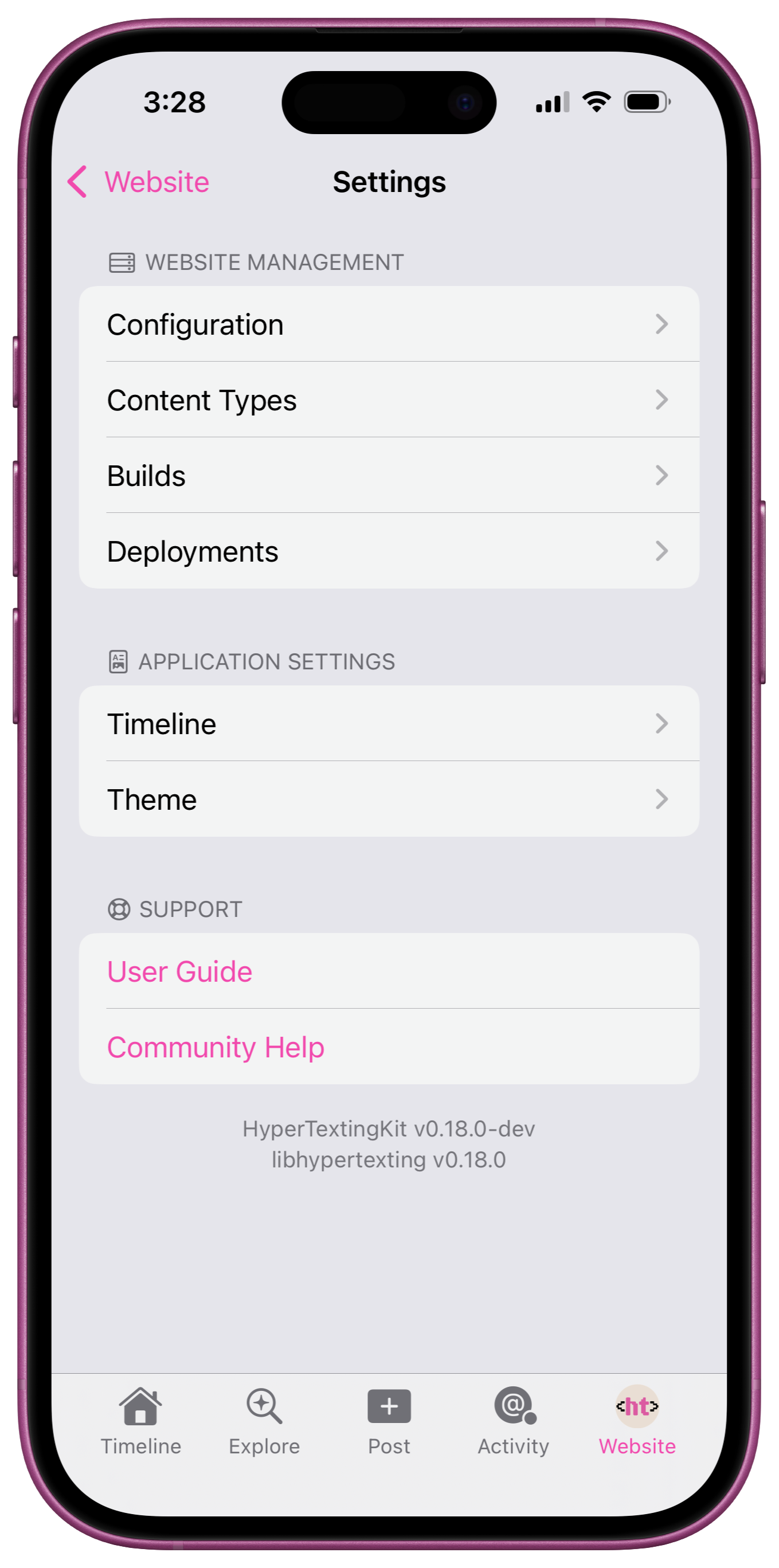
Settings
Tap "Website", then tap the toolbar "..." icon and tap "Settings" to view the Settings menu.
Tap any of the settings under "Website Management" to view settings for the HyperTexting Composer (coming soon).
Tap "Timeline" or "Theme" under "Application Settings" to configure the application.
Tap "User Guide" to view this guide 🎉 or tap "Community Help" to visit the @hypertexting.community.